Homebrew is one of the cleanest examples of the Mac becoming more powerful without becoming less elegant.
At first, a new Mac feels complete enough.
The browser is there.
The built-in apps are there.
The machine works.
Then sooner or later you want something the base system does not really manage for you in a convenient way:
- a command-line tool;
- a developer utility;
- a package that exists everywhere in tutorials except on a fresh Mac;
- or an app you would rather install in a repeatable way than hunt down manually.
That is the moment Homebrew starts making sense.
- What Homebrew actually is
- How to install it safely
- What formulae and casks mean
- The commands that matter most first
- How to keep it healthy over time
The steps and terminology below are checked against the official Homebrew documentation; menu names and behavior can vary by operating-system release and hardware.
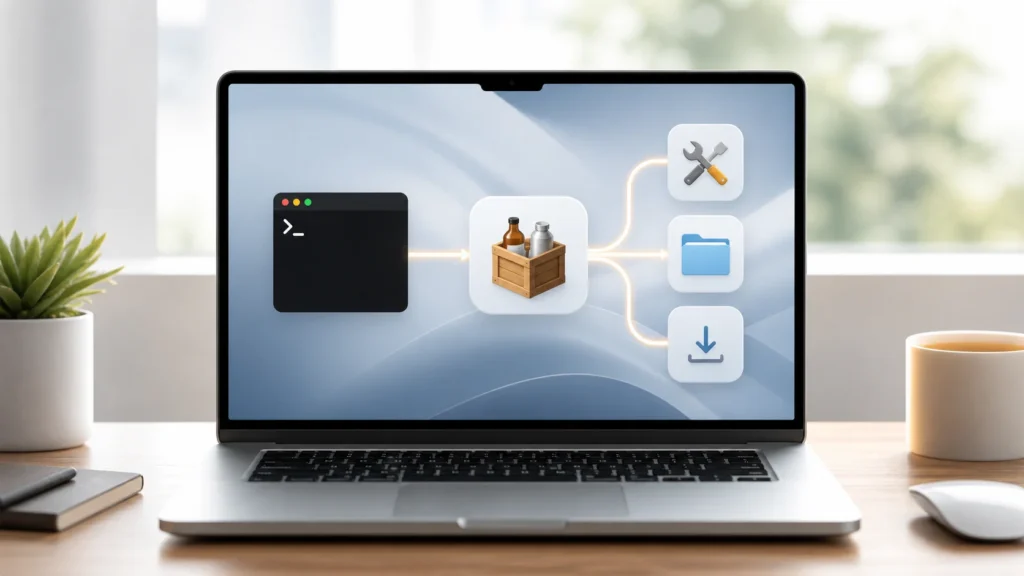
Homebrew is a package manager, which really means it turns software into something you can manage consistently
The official brew(1) documentation describes Homebrew as “The Missing Package Manager for macOS (or Linux).” The same manual also says it is the easiest and most flexible way to install UNIX tools Apple did not include with macOS.
I think the key word there is not “UNIX.”
It is “manage.”
Because the real advantage of Homebrew is not only installing something once.
It is being able to:
- search for packages;
- install them repeatably;
- upgrade them cleanly;
- list what is installed;
- uninstall what you no longer need.
That turns one-off software decisions into a system.
Homebrew makes the Terminal feel useful very quickly
This is one reason it connects so naturally to basic macOS Terminal fluency.
A lot of beginners reach Terminal and ask:
"What would I even use this for?"
Homebrew is one of the best answers.
It gives the command line an everyday job:
- install tools;
- install some apps;
- keep them updated;
- inspect what is on the machine.
That makes Terminal feel less ceremonial and more practical almost immediately.
The safest installation path is the official one
Homebrew’s own homepage provides the official installation command, and the Homebrew Installation documentation explains the post-installation steps clearly. One of the most important details in that documentation is that after installation, Homebrew prints directions for updating your shell configuration. If you do not follow those directions, Homebrew will not work correctly.
I think that is one of the easiest early mistakes to avoid.
People sometimes focus on the install command and ignore the part that teaches the shell where Homebrew lives.
Homebrew’s installation documentation specifically says to add:
eval "$(<Homebrew prefix path>/bin/brew shellenv)"
to the correct shell startup file, depending on the shell you use.
That is not a cosmetic extra.
It is part of the install.
On modern Macs, the prefix path matters
This is one of the subtle details that helps beginners later.
The Homebrew man page defines the prefix as the path where Homebrew is installed. On Apple Silicon Macs, that is commonly /opt/homebrew; on older Intel assumptions, many people still remember /usr/local.
You do not need to memorize every internal path on day one.
But it helps to understand that Homebrew is not floating in the air.
It has a real install prefix, and the shell environment needs to know about it.
That is why the post-install step matters so much.
Formulae and casks are the first two words worth learning
The Homebrew man page defines:
- a formula as a package definition that builds from upstream sources;
- a cask as a package definition that installs pre-compiled binaries built and signed by upstream.
This distinction explains a lot.
In plain language:
- use formulae for command-line tools, libraries, and many developer utilities;
- use casks for many graphical applications distributed as binaries.
That is why the Homebrew ecosystem feels broader than “just command-line packages.” It can manage more than one kind of software, but it does so with slightly different package types.
The first commands that matter most are very simple
This is where Homebrew becomes approachable.
The official brew(1) man page highlights a few essential commands that are exactly the ones beginners should start with:
brew searchbrew installbrew listbrew updatebrew upgradebrew uninstall
That is already enough to understand most of daily Homebrew life.
brew search
The Homebrew man page says brew search performs a substring search of cask tokens and formula names, and can also extend online to homebrew/core and homebrew/cask.
This is the cleanest way to begin.
Instead of browsing random blogs and hoping package names are correct, you can ask Homebrew what it already knows.
brew install
This is the obvious centerpiece.
brew install formula installs a formula, according to the man page. In practice, this is where Homebrew starts to feel empowering because installation becomes declarative.
You are no longer visiting a website, downloading a ZIP, dragging something around, and trying to remember what you did.
You are asking the package manager to make the system match your intent.
brew list
This one matters more than it sounds like.
brew list shows what is already installed.
That is useful for sanity, cleanup, and memory.
A power-user machine becomes easier to trust when you can actually inspect what you added over time.
brew update
The Homebrew docs and man page both treat updating as core behavior.
This command updates Homebrew’s package metadata and definitions. It does not mean everything on your machine is upgraded immediately. It means Homebrew refreshes its understanding of what exists and what versions are available.
That distinction matters because beginners often confuse updating the package manager’s knowledge with upgrading the installed software itself.
brew upgrade
This is the command that upgrades installed formulae.
Homebrew’s FAQ also notes an important housekeeping behavior: old versions of formulae are automatically uninstalled when upgraded, and additional cleanup runs periodically every 30 days.
That is useful context because it shows Homebrew is not only about adding more software forever. It also tries to keep the installation reasonably clean.
brew uninstall
This is where Homebrew starts feeling responsibly reversible.
You can remove packages without guessing which files belonged to them. That alone is a big improvement over many manual installation stories.
Homebrew Formulae helps when you want to browse before you install
The official Formulae site describes itself as the place that helps you find formulae and casks. That makes it useful when you want to:
- confirm a package name;
- see whether something is a formula or cask;
- browse what is available before using the command line directly.
I like this because it gives beginners an easier on-ramp.
Not every first step has to begin in Terminal.
Sometimes confidence grows from browsing first, then installing second.
The real beginner win is consistency, not volume
This is why I do not think the best Homebrew advice is “install everything with brew immediately.”
The real win is that a few important tools can now be managed in one place with one logic.
That means you can build a cleaner relationship with software over time:
- search first;
- install intentionally;
- list what is there;
- update the package database;
- upgrade when appropriate;
- uninstall when it no longer belongs.
That is a healthier model than accumulation by downloads.
Homebrew also deserves a little trust discipline
This is where beginners should stay grounded.
Homebrew is powerful, but power-user fluency is not the same thing as installing everything that looks interesting.
The Homebrew documentation on taps also warns that code in a tap can run with your user’s privileges and that trust matters before using non-official taps. Even if a beginner does not use taps right away, that warning reflects the right mindset:
be deliberate about what repositories and packages you trust.
So I would keep the early rule simple:
- prefer official Homebrew sources;
- prefer known packages;
- understand what you are installing before treating the machine like a playground.
That is how flexibility stays healthy.
If you know what you installed, why you installed it, and how to list, update, upgrade, and remove it later, Homebrew is already doing its most valuable work.
Homebrew is one of the first tools that makes a Mac feel easier to reproduce
This is one reason people end up loving it.
Once software lives in a package manager, the machine becomes easier to explain, easier to rebuild, and easier to maintain.
That is a quiet but meaningful shift.
It turns a Mac from:
"the machine where I clicked a lot of things over time"
into:
"the machine where I can describe what I installed and manage it intentionally."
For anyone who likes order, that feels very good.
For readers still learning the platform around the package manager, the Windows-to-Mac transition guide explains the filesystem, keyboard, and application conventions Homebrew assumes.
Conclusion
Homebrew is one of the most useful tools a macOS user can add because it gives the Mac a clear package-management workflow for command-line tools and many applications. The biggest ideas to understand early are simple: use the official installer, complete the shell environment step, understand the difference between formulae and casks, and get comfortable with the core commands for search, install, list, update, upgrade, and uninstall.
What makes Homebrew powerful is not only that it can install software. It is that it makes software easier to manage consistently. Once that logic becomes familiar, the Mac starts feeling a little less improvised and a lot more deliberate.
FAQ
What is Homebrew on macOS?
Homebrew is a package manager for macOS that helps install, update, list, and remove command-line tools and many apps in a more consistent way than manual downloads alone.
What is the difference between a formula and a cask?
According to the Homebrew man page, a formula is a package definition that builds from upstream sources, while a cask installs pre-compiled binaries built and signed by upstream.