Moving from Windows to Mac is rarely hard in the dramatic sense.
It is hard in the tiny, repetitive sense.
You know how computers work.
You know what a browser is.
You know what a file is.
You know how to copy, paste, search, switch apps, plug in a drive, and move through settings.
And yet the first hours on a Mac can still feel oddly slippery.
The problem is not that macOS is completely unfamiliar.
It is that it is familiar enough to invite Windows muscle memory and different enough to keep interrupting it.
That is why I think the best beginner guide for switching from Windows to Mac should not start with prestige or ecosystem romance. It should start with orientation.
- What to do first when you get the Mac
- How to move your files and accounts safely
- The Windows habits that change on macOS
- The few Mac concepts worth learning early
- How to make the first week feel less awkward
The steps and terminology below are checked against Apple's official support guide; menu names and behavior can vary by operating-system release and hardware.
The easiest first mistake is expecting the Mac to imitate Windows closely
This is understandable.
Both are desktop operating systems.
Both open apps, manage files, connect to networks, and browse the web.
But Apple’s own “Switched from Windows to Mac?” guidance makes something clear right away: the Mac desktop has its own structure, with the menu bar always across the top, the Dock as a central launcher area, Spotlight for fast search, and different conventions for screenshots, right-click, and switching apps.
That means the transition gets easier the moment you stop asking:
"Where is the Windows version of this?"
and start asking:
"What is the Mac way of doing this task?"
That shift saves a surprising amount of frustration.
If you are moving from an actual Windows PC, use Migration Assistant first
Apple’s official support flow for moving from PC to Mac is refreshingly direct.
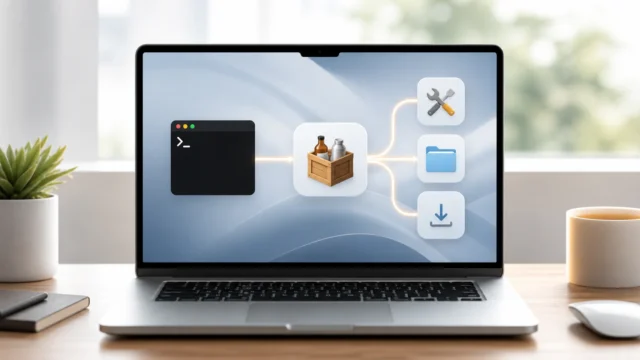
The company’s Migration Assistant article says the tool can copy contacts, calendars, email accounts, and more from a Windows PC to the correct places on the Mac. Apple’s broader Mac Help guide says you can open Migration Assistant from System Settings, then General, then Transfer or Reset, and start the process from a Windows PC.
That matters because beginners often assume the move has to be manual.
It does not.
And if you want the cleanest first setup, Apple’s current support page for Windows Migration Assistant confirms a very concrete requirement that is worth noting on August 10, 2026: the current Windows Migration Assistant v3.0.2.1 page lists support for macOS Sonoma 14.4 or later and Windows 10 or later.
That kind of detail is useful because migration tools can change over time.
If I were helping someone move over today, I would begin with:
- verify the Mac setup is far enough along to use Migration Assistant;
- download the matching Windows Migration Assistant from Apple’s current support page;
- close Windows apps before migration;
- let the transfer move documents, accounts, and other supported data first;
- only then decide what still needs manual cleanup.
That is calmer than rebuilding your digital life one folder at a time.
Finder is the first place where Windows users feel different muscle memory
Finder is not difficult.
It is simply not File Explorer.
Apple’s Mac Help for people switching from Windows emphasizes Finder as the central place for files, folders, apps, network locations, and connected drives. That sounds familiar enough, but the feeling is different.
Some of the first mental adjustments are small:
- the menu bar is at the top of the screen, not inside each window;
- app-specific menus change depending on the active app;
- drives and locations may appear in Finder’s sidebar rather than through a
This PCpattern; - closing a window is not always the same thing as quitting an app.
That last one catches a lot of people.
On macOS, closing the window can leave the app still open.
To fully quit, Apple’s shortcut documentation lists Command-Q.
That single habit removes a lot of early confusion.
Finder is also where a new Mac owner starts to see what is actually consuming space. Once the first migration is complete, macOS built-in storage tools make it easier to distinguish ordinary file cleanup from a real capacity problem.
The keyboard changes less than people fear, but the important keys move
This is one of the fastest ways to make the Mac feel less foreign.
Apple’s “Windows keys on a Mac keyboard” and Mac shortcuts documentation make the key translation very clear:
- on a Mac,
Commandusually takes the role thatCtrloften had in Windows shortcuts; Command-C,Command-V, andCommand-Xbecome the new copy, paste, and cut reflexes;Command-Ssaves;Command-Tabswitches between open apps;Command-Spaceopens Spotlight search.
Apple also has a helpful “What’s it called on my Mac?” page that frames the same transition in conceptual terms. For example, the Windows-style Alt-Tab habit becomes Command-Tab on Mac.
That is why I think the keyboard transition is mostly about reassigning trust.
You are not relearning computing from zero.
You are moving the center of gravity from Ctrl to Command.
Right-click exists on Mac, but Apple talks about it differently
This is a tiny thing that matters a lot in the first week.
Apple’s Windows-to-Mac guide explains that right-click on Mac is called Control-click or secondary click. You can hold the Control key while clicking, or configure how secondary click works in your trackpad or mouse settings.
This is a good example of why the Mac can feel strange in the beginning without being objectively complicated.
The feature exists.
The action exists.
The name and defaults are just slightly different.
Once you know that, a lot of “Where is the context menu?” stress disappears.
Spotlight is one of the fastest ways to stop missing the Start menu
Windows users often look for a familiar central launcher.
On macOS, Spotlight is one of the cleanest answers.
Apple’s keyboard shortcuts page says Command-Space shows or hides Spotlight search. Apple’s switching guide also points new users toward Spotlight as a core navigation habit.
I think this is one of the first Mac habits worth adopting because it reduces wandering.
Instead of asking:
"Where exactly does Apple hide this?"
you can often ask Spotlight directly for:
- apps;
- files;
- settings;
- calculations;
- quick searches.
The sooner this becomes natural, the less you miss the Start menu model.
The menu bar and Dock are not decoration. They are part of the logic
Windows users often understand taskbars instinctively.
The Mac uses two separate ideas more strongly:
- the menu bar at the top;
- the Dock below.
Apple’s switcher guide explains both as primary navigation structures. The menu bar changes with the active app, while the Dock gives quick access to apps and open items.
I think this is one of the most important conceptual shifts.
On Windows, many actions feel window-centered.
On macOS, many actions feel app-centered.
That difference explains a lot:
- why menus live at the top of the screen;
- why app quitting behaves differently;
- why the active app identity matters so much;
- why the desktop feels more unified even when it is unfamiliar.
File transfer is only one part of switching. Habit transfer matters more
This is the part I think people underestimate most.
Moving the documents is easy compared with moving the reflexes.
If you are coming from Windows, some of your strongest habits may involve:
Ctrl-based shortcuts;- File Explorer assumptions;
- network paths and familiar locations;
- taskbar-centric navigation;
- app windows behaving as the center of all commands.
That is why I think a Windows user benefits from thinking in two stages:
- move the data cleanly;
- learn the Mac habits deliberately.
The first stage is where Migration Assistant helps.
The second stage is where the Mac starts feeling like a place rather than an obstacle.
And honestly, that stage takes a little patience.
The first week should focus on only a few Mac habits
If I were helping a Windows user settle into a Mac, I would focus on these first:
- use
Command-Spacefor search; - use
Command-Tabto switch apps; - use
Command-Qwhen you actually want to quit; - learn Finder’s sidebar and locations;
- learn how secondary click works on the trackpad or mouse;
- pay attention to the top menu bar instead of hunting inside windows.
That is enough.
You do not need to master every gesture, Apple ecosystem feature, or trackpad trick immediately.
You only need enough structure to stop feeling displaced.
This is very similar to why Windows beginners benefit from mastering a few repeatable workflows early, such as mapping a network drive for regular file sharing. Comfort on an operating system grows from repeated relief, not from memorizing everything on day one.
Many early frustrations on macOS are not signs that the system is worse or harder. They are signs that your old habits are still leading. Once the new patterns settle in, much of that tension fades quickly.
Part of the transition is recognizing which Windows expectations are historical rather than universal. The retrospective on why Windows XP felt faster and more personal provides useful context for habits that macOS handles differently.
For the next practical step, continue with Trying Linux Without Installing: A Guide to Live USBs and Top 10 Terminal Commands Every macOS Power User Should Know; it builds on the same shift from unfamiliar terminology to repeatable habits.
Conclusion
Switching from Windows to Mac becomes much easier when you treat it as a transition in habits, not just in hardware. Apple’s own tools make the data move manageable through Migration Assistant, while the real beginner work happens in learning Finder, Spotlight, the Dock, the menu bar, right-click behavior, and the Command-key-centered shortcut model.
What makes the first days on a Mac feel awkward is not usually complexity. It is mismatch. Windows habits keep reaching for things that exist differently on macOS. Once you let the Mac teach its own logic instead of forcing it to imitate Windows, the whole system starts feeling more coherent, calmer, and easier to trust.
FAQ
What is the easiest way to move from a Windows PC to a Mac?
Apple’s recommended path is Migration Assistant, which can transfer contacts, calendars, email accounts, documents, and more from a Windows PC to a Mac in a more organized way than manual copying alone.
What key replaces Ctrl on a Mac?
For many common shortcuts, the Command key on a Mac takes the role that Ctrl often had on Windows. For example, copy and paste usually become Command-C and Command-V.
How do I right-click on a Mac?
Apple calls it secondary click or Control-click. You can hold Control while clicking, or configure your trackpad or mouse settings to use a standard secondary click gesture.
What is the Mac equivalent of the Start menu search habit?
For many users, the closest everyday replacement is Spotlight. Apple’s shortcut documentation lists Command-Space as the shortcut to open Spotlight search.
Why does closing a window on Mac not always quit the app?
Because macOS often treats window closure and app quitting as separate actions. If you want to exit the app entirely, Apple’s keyboard shortcuts documentation lists Command-Q for quitting the active app.