KDE Plasma is one of the few Linux desktops that can feel reassuring and exciting at the same time.
That is a rare combination.
A new user can sit down in front of Plasma and think:
"Okay, I understand this."
Then a little later they start noticing something even more important:
"I can actually shape this."
That second feeling is why Plasma leaves such a strong impression.
- Why Plasma is such a good first desktop to customize
- What to change first without overcomplicating things
- How themes, panels, and widgets fit together
- What beginners should avoid changing too early
- How to make Plasma feel personal without making it unstable
The steps and terminology below are checked against the official KDE Plasma documentation; menu names and behavior can vary by operating-system release and hardware.
KDE Plasma is friendly at the surface and deep underneath
KDE’s own Plasma page describes the desktop in a way I think is unusually honest:
simple by default, powerful when needed.
That is exactly why Plasma works so well for beginners.
It does not demand that you become a Linux identity theorist before touching the desktop.
It gives you a usable starting point, then gradually reveals how much control is available.
KDE also emphasizes that Plasma is customizable, with official examples that include dark themes, movable panels, downloadable widgets, and extensive configuration through System Settings.
So the right way to approach a first Plasma setup is not:
"How much can I change today?"
It is:
"Which changes will make this desktop feel calmer, clearer, and more mine?"
That is the better beginner question.
The first mistake is trying to build your dream desktop before you know how you actually work
I think this happens constantly.
A beginner sees screenshots online and immediately starts thinking in terms of:
- top bars;
- floating docks;
- animated widgets;
- custom icon packs;
- alternative launchers;
- multiple panels;
- fancy visual themes.
None of that is inherently bad.
The problem is timing.
On week one, the goal should not be maximum originality.
It should be comfort.
Because a first Linux desktop has to carry more than aesthetics.
It has to carry learning.
If every part of the environment changes before your habits settle, even small confusion starts to feel bigger than it is.
Start with Look and Feel, not with total reinvention
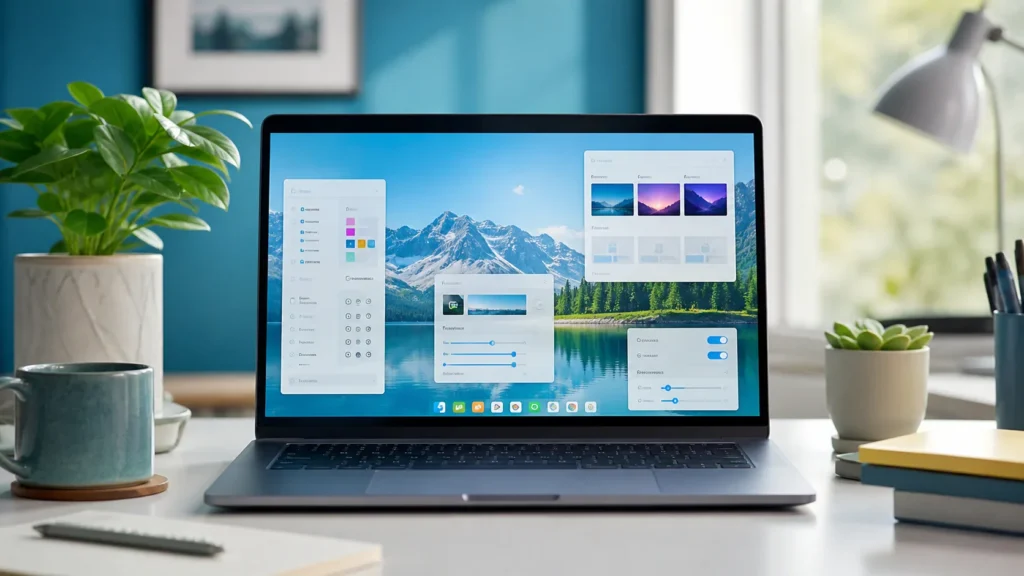
KDE UserBase says the Appearance section in System Settings contains the settings for customizing the theme of Plasma and applications. It also lists areas such as Look and Feel, Color, Fonts, Icons, Cursor theme, and Splash Screen.
That gives beginners a much better starting point than random tweaking.
I would begin here:
- choose a
Look and Feelprofile you genuinely like; - decide whether you want a lighter or darker desktop;
- pick a color scheme that feels easy on your eyes;
- only then think about icons or fonts.
This matters because theme changes affect how the whole desktop feels emotionally.
And honestly, the right theme can do more for desktop comfort than a dozen clever adjustments elsewhere.
Color scheme is usually more important than people expect
KDE’s Appearance documentation specifically notes that the Color section lets you choose the color scheme for the desktop and applications, and even tweak settings for individual elements.
That is powerful, but I think beginners should use that power gently.
The first win is not making a unique color science experiment.
It is reducing friction.
If the default scheme feels too cold, too flat, or too bright at night, changing the color scheme can make Plasma feel immediately more livable. That is a high-impact, low-risk adjustment.
Same with dark mode.
KDE’s own Plasma page presents a dark theme as one of the straightforward customization options, and for many people it is the first change that makes the desktop feel more settled.
Icons and fonts are small changes with outsized emotional effect
The UserBase Appearance pages list both Icons and Fonts as core areas of customization.
This is where Plasma starts feeling personal without becoming unstable.
Changing the icon theme can make the desktop feel:
- softer;
- sharper;
- more modern;
- more playful;
- more restrained.
Changing fonts can make the system feel:
- easier to read;
- cleaner at small sizes;
- more consistent across apps.
I would still keep the first round conservative.
If you are new, use icons and fonts to improve readability and comfort, not to prove how original your setup is.
Panels are where Plasma’s flexibility becomes obvious
This is one of the defining Plasma moments.
KDE UserBase describes a panel as a widget container that can be placed on any side of the screen. It also notes that you can have multiple panels, and that the default layout typically includes the application menu, pager, task manager, system tray, clock, and desktop peek.
That already tells you a lot.
Plasma does not treat the panel as a sacred fixed strip.
It treats it as part of your layout.
The UserBase documentation also says that panel configuration is accessed through the panel’s context menu, which puts it into edit mode. From there, widgets can be dragged, panel size can be adjusted, alignment can be changed, and options like auto-hide, translucency, and floating behavior can be configured.
This is where beginners often realize:
"Oh. This desktop actually wants me to shape it."
The safest first panel changes are simple ones
I would not begin by building a three-panel masterpiece.
I would begin with changes like these:
- make the panel a little taller if icons feel cramped;
- move it to the top if that fits your muscle memory better;
- enable auto-hide only if you genuinely want more vertical space;
- try floating mode if you like a lighter visual feel;
- reorder widgets so the things you use most sit closer together.
KDE’s official panel documentation also notes that widgets can be added, spacers can be inserted, and panels can be moved to any screen edge.
That means even a modest panel change can make Plasma feel surprisingly intentional.
Widgets are where the desktop becomes yours, for better or worse
KDE’s official Plasma page highlights widgets as a major customization feature, and UserBase treats Plasmoids as a central part of the Plasma experience.
This is one of Plasma’s most charming strengths.
You can add widgets to:
- the desktop;
- the panel;
- or both.
And depending on the widget, they can provide utility, information, or just atmosphere.
But this is also where beginners can overdo things very quickly.
A clean desktop with one or two genuinely useful widgets usually feels better than a dashboard full of objects competing for your attention.
If I were starting fresh, I would only add widgets that answer a real need:
- weather;
- calendar;
- system monitor;
- notes;
- media controls;
- device or battery visibility.
That is enough.
System Settings is the real heart of beginner customization
KDE’s Plasma page explicitly calls System Settings a place where hardware, software, and workspace preferences can be managed in one app. UserBase presents System Settings as the place where Plasma’s configuration areas are organized.
This matters because it keeps customization from turning into folklore.
A lot of Linux beginners assume desktop personalization means:
- hunting through dotfiles;
- copy-pasting shell commands;
- installing random tweaks from forum posts.
Plasma often does not need that for the first wave of good changes.
The desktop already gives you a structured place to do the most meaningful work.
And I think that is one of Plasma’s best beginner traits:
it lets you become expressive without forcing you to become messy.
What I would avoid changing too early
This part matters just as much as the fun part.
If you are new to Plasma, I would avoid doing all of this in the first sitting:
- replacing too many visual elements at once;
- adding several panels before you understand one;
- installing a pile of community widgets immediately;
- changing layout, theme, icon pack, fonts, and shortcuts all in one evening;
- chasing screenshots instead of usability.
KDE’s own ecosystem makes deep customization possible, but possible is not the same thing as wise on day one.
The beginner version of success is not:
"My desktop looks unlike every other desktop."
It is:
"My desktop feels coherent, comfortable, and easy to trust."
The best first Plasma setup is one that still feels boring in the right ways
I mean that as praise.
You want the desktop to feel personal, yes.
But you also want it to disappear when you are doing actual work.
That is why the first strong Plasma setup usually comes from a handful of calm choices:
- a theme you enjoy looking at;
- colors that reduce eye strain;
- icons and fonts that improve clarity;
- a panel layout that fits your habits;
- a few widgets that solve real problems.
That is enough to make Plasma feel special without turning the desktop into a project that constantly asks for more attention.
This is also why desktop customization fits so naturally after broader beginner steps like trying Linux without installing it. Once Linux itself feels less foreign, details like panel placement and theme personality start mattering more. And once you understand the system a little better, even concepts like configuration files in places such as lightweight Linux container operations feel less intimidating if you ever choose to go deeper later.
If the desktop becomes easier to read, easier to navigate, and more emotionally comfortable after a few careful changes, Plasma is already doing its job well.
Conclusion
KDE Plasma is one of the strongest first Linux desktops to customize because it starts from a familiar base and then gives you real control through official tools instead of immediate chaos. Its own documentation and product pages make that philosophy clear: easy to use at first, powerful when you need more. For a beginner, the smartest path is to start with Look and Feel, color scheme, icons, and fonts, then move on to panel layout and a few useful widgets once the desktop habits begin to settle.
You do not need to redesign Plasma in a weekend.
You only need to make it feel a little more like home each time you sit down.
FAQ
Is KDE Plasma good for beginners?
Yes. KDE describes Plasma as simple by default and powerful when needed, and that balance is exactly what makes it beginner-friendly. You can use it comfortably with the defaults, then personalize it gradually through System Settings and desktop edit mode.
What should I customize first in KDE Plasma?
The safest and most useful first changes are usually Look and Feel, color scheme, icons, fonts, and then modest panel adjustments. Those changes improve comfort quickly without making the desktop harder to understand.