For many beginners, the most intimidating part of Linux is not Linux itself.
It is the fear of crossing a line too early.
What if the installation changes the disk?
What if Wi-Fi does not work?
What if the laptop trackpad behaves badly?
What if the desktop looks interesting in screenshots but feels awkward in real life?
This is exactly why live USBs matter.
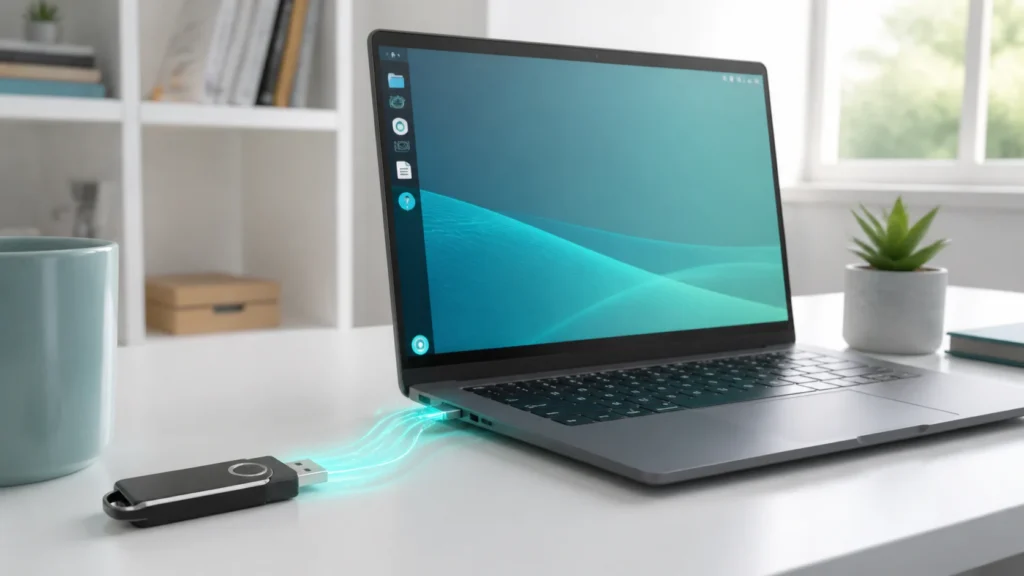
A live USB lets you boot Linux from a USB stick and try the system without immediately committing to a full installation on the internal drive. That makes the first contact with Linux feel less like a leap and more like a test drive.
And honestly, that is how it should feel.
- What a live USB actually is
- Why it is the safest first step for beginners
- How to create one
- What to test before installing anything
- What a live session can and cannot tell you
The steps and terminology below are checked against Ubuntu's official documentation; menu names and behavior can vary by operating-system release and hardware.
A live USB is Linux running from external boot media instead of your internal drive
That is the simplest useful definition.
Debian’s official CD and USB FAQ describes live images as systems designed to run directly from USB, CD, or DVD without needing installation. Linux Mint’s installation guide says the same thing more concretely: when you boot from the USB stick, Linux Mint starts a live session, logs you in automatically, and gives you a usable desktop environment before anything permanent is installed.
That is the real beginner value.
You are not only creating installer media.
You are creating a temporary Linux environment you can actually use.
That means a live USB can help you answer important first questions:
- Does the laptop boot Linux properly?
- Does Wi-Fi work?
- Does audio work?
- Does the trackpad feel normal?
- Does the desktop make sense to me?
- Do I even like this distribution in practice?
Those are much better questions to answer before installation than after it.
The biggest gift of a live USB is psychological safety
This matters more than some technical guides admit.
Beginners are often told that Linux is easy now.
Sometimes that is true.
But the fear does not disappear just because the process improved.
What the live USB changes is emotional pressure.
Instead of thinking:
"If I try this, I am changing my computer."
you can think:
"If I try this, I am just visiting."
That is a much healthier frame.
A live session gives you permission to be curious without pretending you are ready to commit. And that matters because a lot of first Linux decisions become clearer the moment the machine is physically in front of you and the OS is responding to your own hardware, not to someone else’s review video.
Creating the USB is easier than the old mythology makes it sound
This is one area where modern Linux is much kinder than its reputation.
Ubuntu’s official documentation explains how to create a bootable USB stick from Windows using Rufus, and it also notes that many users will find balenaEtcher simpler. Fedora’s documentation strongly recommends Fedora Media Writer as a reliable way to create live USB media. Linux Mint’s installation guide explains how to create bootable media and then boot into the live environment. Debian’s official FAQ confirms that Debian live images are specifically designed to run this way from USB.
The exact tool can vary by distribution and by the operating system you are creating the USB from, but the basic flow is straightforward:
- download the Linux ISO from the official site;
- use a trusted writing tool to write it to a USB drive;
- reboot the computer;
- choose the USB device from the boot menu;
- start the live session.
That is already enough for a first test.
Booting from the USB is the part that feels strange the first time
Not because it is necessarily difficult, but because it happens before your usual operating system loads.
Linux Mint’s boot guide describes the process clearly: insert the USB stick, restart the computer, and press the appropriate BIOS or boot-menu key before the normal operating system starts. From there, you choose the USB device and boot into the live environment.
This is the moment many beginners think they are “doing something advanced.”
In reality, they are just choosing a temporary startup device.
Once that clicks, the whole process feels much less dramatic.
What you should test during a live Linux session
This is the part I think beginners should take more seriously.
The purpose of a live USB is not just to admire the wallpaper.
It is to test whether daily life feels plausible.
I would check:
- Wi-Fi connection and stability;
- sound output and microphone detection;
- display brightness and scaling;
- keyboard layout and function keys;
- trackpad behavior, gestures, and scrolling;
- suspend and resume if the distro supports testing it safely;
- browser responsiveness;
- how comfortable the desktop feels after ten or fifteen minutes.
Those checks matter because a first Linux distribution should fit the actual machine, not only the imagination of the machine. This is one reason live USBs fit so naturally after choosing a first distro. The shortlist helps you narrow the candidates. The live session helps you trust one.
A live session is not the same thing as a full installed system
This is an important beginner nuance.
Linux Mint’s installation guide notes that the live session is similar to a normal installed session, but slower because it is running from USB or DVD instead of an internal SSD or HDD. That difference matters.
So if the live desktop feels a little slower than expected, that does not automatically mean the installed system will feel the same.
A live session is excellent for:
- hardware testing;
- desktop familiarity;
- installation confidence;
- checking whether the overall environment feels comfortable.
It is less perfect for:
- judging final performance precisely;
- building long-term workflows;
- assuming every update or driver behavior will be identical after install.
It is a preview.
But it is a very useful preview.
Some live USB problems are ordinary, not catastrophic
This is worth saying because beginners often over-interpret first friction.
Linux Mint’s boot options documentation, for example, mentions using compatibility-related boot options such as nomodeset when the normal boot path has display issues. That is a reminder that a failed first visual boot does not always mean “Linux does not work on this computer.” Sometimes it means the first test needs a slightly safer boot path.
The important thing is not to romanticize the trouble.
It is simply to recognize that live testing exists partly to surface these issues before you install anything.
That is not failure.
That is the point.
If the live session shows that the distro feels wrong, the hardware behaves badly, or the desktop simply does not fit your preferences, that test has already saved you from a worse experience later.
Live USBs make Linux feel more like a conversation than a gamble
This may be the main reason I like recommending them.
They change the emotional shape of the first Linux encounter.
Without a live USB, installation can feel like a decision made in theory.
With a live USB, the machine gets a vote.
You can see whether the desktop feels calm or awkward.
You can see whether the display behaves.
You can see whether the Wi-Fi card cooperates.
You can see whether the whole idea feels inviting enough to continue.
That is a much better beginning than blind commitment.
A live session can also reveal whether Linux feels comfortable enough for a larger project. Readers who already use macOS can compare the shell habits in the essential macOS Terminal commands, while the Docker, LXC, and VM comparison explains workload models commonly encountered later.
For historical contrast, desktop Linux in the 2000s shows how much more commitment hardware detection, installation media, and routine desktop setup once demanded from a new user.
Once the live session feels comfortable, the Linux filesystem hierarchy explains where the system keeps things, while 20 essential terminal commands turn that map into repeatable navigation.
Conclusion
Trying Linux with a live USB is one of the safest and smartest first steps a beginner can take. It allows the system to boot from external media, explore the desktop, and test hardware compatibility without immediately changing the internal drive. That turns Linux from an abstract idea into something you can evaluate with your own hands.
What makes live USBs so useful is not only that they reduce risk. It is that they replace imagination with evidence. Before you install, you can already learn whether the distro feels comfortable, whether the laptop cooperates, and whether the whole transition feels worth continuing. For a first encounter with Linux, that is exactly the kind of honesty a beginner needs.
FAQ
What is a Linux live USB?
It is a bootable USB drive containing a Linux live image that lets you start and use Linux directly from the USB stick without first installing it to the internal drive.
Can I try Linux without erasing Windows?
Yes. That is one of the main reasons live USBs are so useful. You can boot into a live session and explore Linux before making any installation decision.
Is a live session slower than an installed Linux system?
Usually yes. Official Linux Mint documentation notes that the live session is slower because it runs from USB or DVD rather than from internal storage.
What should I test in a Linux live session?
You should test Wi-Fi, sound, display behavior, keyboard and trackpad comfort, general responsiveness, and whether the desktop environment feels natural on your actual machine.
If the live USB has problems, does that mean Linux won’t work on my PC?
Not always. Some issues are boot-mode or driver-related and may have workarounds, which is exactly why testing with a live USB is valuable before installation.