One of the strangest things about learning Windows is how long the keyboard can remain underused.
For many beginners, it starts as a tool for typing passwords, naming files, and writing messages. Everything else happens with the mouse. Click Start. Click Settings. Click File Explorer. Click between windows. Click the search box. Click the screenshot tool.
That is normal.
But it also means Windows can feel slower and more awkward than it really is.
The moment that changed for me was not when I learned something advanced. It was when I learned a handful of small shortcuts that made the system feel easier to navigate without needing to hunt around the screen first. That is why I think beginner shortcuts matter so much. They are not about showing off. They are about removing friction from the first layer of everyday use.
- Why beginner shortcuts matter more than advanced ones
- The first shortcuts I would teach almost anyone
- What each shortcut changes in daily use
- How to build shortcut memory without forcing it
- What beginners should ignore for now
The steps and terminology below are checked against Microsoft's official support guide; menu names and behavior can vary by operating-system release and hardware.
The right shortcuts make Windows feel less clumsy, not more technical
I think this is the biggest misconception around keyboard shortcuts.
People often treat them as a power-user language.
Something you learn later, after you become “good with computers.”
But the earliest useful shortcuts are not advanced at all.
They solve very ordinary beginner problems:
- switching to the app you already opened;
- finding Settings without wandering through menus;
- searching without moving the mouse first;
- undoing a mistake immediately;
- locking the PC when stepping away;
- taking a screenshot without installing anything extra.
That is why Microsoft’s keyboard shortcut documentation is more helpful than many people expect. It is not only a giant list. It also shows how many basic Windows actions already have direct keyboard paths built into the operating system.
The first 10 shortcuts I would teach almost any beginner
These are not the only useful shortcuts in Windows.
They are simply the ones I think create the fastest comfort.
1. Ctrl + C, Ctrl + V, and Ctrl + X
These are the foundation.
Microsoft documents them as the standard shortcuts for copy, paste, and cut. A beginner does not need to learn twenty shortcuts before these matter. These three immediately reduce fear around moving text, files, and small pieces of information from one place to another.
If someone learns only one family of shortcuts in the first week, I would start here.
2. Ctrl + Z
This is the confidence shortcut.
Microsoft lists Ctrl + Z as Undo, and that matters because beginners hesitate less when they know small mistakes are reversible. Delete the wrong line in a note? Move something accidentally? Rename something incorrectly in a place that supports undo? This shortcut changes the emotional tone of using a computer.
It makes experimentation feel safer.
3. Alt + Tab
Microsoft describes Alt + Tab as the way to switch between open windows.
This is one of the first shortcuts that makes a PC feel responsive instead of crowded. Beginners often minimize and reopen things far more than they need to. Alt + Tab teaches a calmer idea: your windows are already there, and switching between them is easier than rebuilding your place every time.
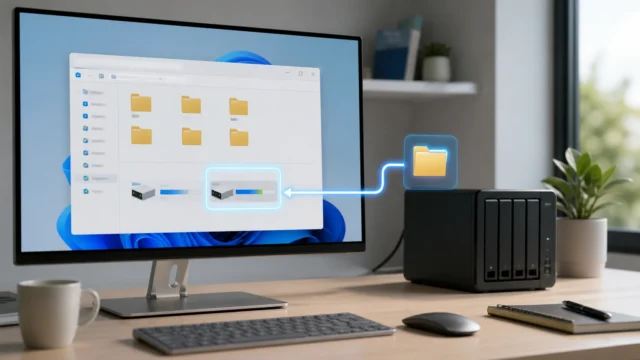
4. Windows key + E
Microsoft documents this as the shortcut to open File Explorer.
This is one of my favorite beginner shortcuts because it gives Windows a sense of place. Files stop feeling scattered across the machine and start feeling reachable from one reliable doorway.
If someone is learning downloads, folders, screenshots, USB drives, or documents, this shortcut earns its place very quickly.
5. Windows key + S
Search is one of the simplest ways to reduce menu wandering.
Microsoft lists Windows key + S for Search, and for beginners this can be more useful than memorizing where every feature lives. Instead of trying to remember the path to an app or setting, you can simply open search and ask Windows for what you need.
That is a much friendlier habit than clicking through three different places and hoping one of them looks familiar.
6. Windows key + I
Microsoft documents Windows key + I as the shortcut that opens Settings.
This matters because beginners eventually need Settings for Wi-Fi, Bluetooth, display scaling, updates, accounts, sound, and privacy controls. Going directly there removes one of the most common little delays in everyday Windows use.
It is not exciting, but it is extremely practical.
7. Windows key + L
This shortcut locks the PC immediately.
Microsoft lists Windows key + L as a way to lock the computer, and I think it is one of the healthiest early habits to build. It is simple, respectful, and useful at work, at school, or even just at home when you do not want to leave a session open by accident.
Some shortcuts save time.
This one quietly improves behavior.
8. Windows key + Shift + S
Microsoft includes this shortcut for opening the Snipping Tool capture experience.
For beginners, this is far better than taking a photo of the screen with a phone or trying to crop screenshots later without knowing where the image went. It gives a fast path to capturing only what matters.
That makes it useful for:
- sharing errors with a friend;
- saving a receipt or confirmation;
- showing part of a webpage;
- grabbing a small section of notes.
9. Ctrl + Shift + Esc
Microsoft documents this as the shortcut to open Task Manager.
This is not a shortcut I would use to scare beginners with system internals. I would use it because every beginner eventually has a moment where an app stops responding and the computer suddenly feels mysterious. Opening Task Manager directly restores a little control.
It says:
the PC is not frozen beyond understanding;
there is still a door into what is happening.
10. Windows key + R
Microsoft lists Windows key + R to open the Run dialog.
I would not call this essential for every first day, but it becomes useful surprisingly fast. It is a clean way to open simple built-in tools, folders, or commands when guided by instructions. Beginners do not need to live in Run, but learning that it exists helps Windows feel more direct and less hidden behind layers of interface.
The best beginner shortcuts are the ones that remove hesitation
That is the pattern behind all ten.
None of them are here because they sound impressive.
They are here because they answer a beginner moment quickly:
- I copied the wrong thing.
- I closed the wrong thing.
- I cannot find my files.
- I need Settings.
- I need a screenshot.
- I want to switch apps.
- I need to step away.
- Something stopped responding.
The real benefit is not speed alone.
It is predictability.
Once a beginner knows there is a direct path to those actions, Windows stops feeling like a maze of interface panels and starts feeling more like a system with a few reliable doors.
You do not need to memorize them all at once
I think this is where people go wrong with shortcut advice.
They turn it into a vocabulary exam.
That usually fails.
A better approach is to choose three first:
Alt + TabWindows key + EWindows key + Shift + S
Or maybe:
Ctrl + CCtrl + VCtrl + Z
Use the same few combinations repeatedly until they stop feeling like combinations and start feeling like habits. After that, adding one more shortcut feels easy.
That is how keyboard fluency usually grows in real life.
Not through memorization first, but through repeated relief.
They need the smallest set that solves the same frustrations often enough to become memorable. Comfort grows from repetition, not from collecting combinations.
What I would ignore for now
Windows has many more shortcuts than a beginner needs on day one.
Microsoft’s documentation includes categories for desktop behavior, taskbar controls, dialog boxes, command prompt actions, multiple desktops, Settings, accessibility, and more. That is useful reference material, but it should not become pressure.
For most beginners, I would ignore anything that feels too specific until a real need appears.
If you are not using multiple desktops yet, you do not need to memorize their shortcuts.
If you are not in Command Prompt, you do not need terminal shortcuts.
If you are still learning where your files live, that matters far more than collecting obscure key combinations.
There is a nice historical irony here too. Older Windows culture often expected people to be more keyboard-aware because interfaces were rougher and paths were less obvious. You can feel a bit of that spirit in pieces like Total Commander and classic Windows workflows or even in the command-driven confidence around MS-DOS batch files. Modern Windows is friendlier, but the keyboard still becomes part of fluency earlier than many people expect.
Conclusion
The best Windows keyboard shortcuts for beginners are not the most advanced ones. They are the shortcuts that remove uncertainty from everyday actions like searching, switching apps, opening File Explorer, launching Settings, taking screenshots, locking the PC, and undoing mistakes. Those few combinations do more than save time. They make Windows feel less clumsy and more understandable.
That is why I think beginner shortcut advice should stay small and practical. A new user does not need fifty combinations. They need a handful of reliable actions that make the machine feel easier to read. Once that happens, the keyboard stops feeling like a second-class input method and starts feeling like part of how Windows is meant to be used.
FAQ
What is the most useful Windows shortcut for a complete beginner?
There is no single universal answer, but Alt + Tab, Windows key + E, and Ctrl + C / Ctrl + V are some of the fastest ways to make everyday Windows use feel easier.
Are Windows keyboard shortcuts the same in every app?
Not always. Microsoft notes that some shortcut behavior can vary between applications, which is why the official list describes the default Windows shortcuts rather than promising identical behavior everywhere.