One of the most quietly useful ideas in desktop Linux is that your screen does not have to be one crowded room.
It can be several rooms.
That is what workspaces and virtual desktops started feeling like to me once I stopped thinking of them as “power-user features” and started using them as basic clutter control. They did not make me work faster in a dramatic movie-trailer sense. They just made the desktop feel less noisy.
And for a lot of people, that is the real win.
- What workspaces and virtual desktops actually are
- How GNOME approaches workspaces
- How KDE Plasma approaches virtual desktops
- Why KDE Activities are related but not the same thing
- How I think beginners should start using them
At the beginner level, the concept is simpler than the name
GNOME’s official help explains it very plainly: workspaces are groups of windows on your desktop, and they act like virtual desktops. Their purpose is to reduce clutter and make the desktop easier to navigate.
That is the core idea.
You are not creating a second physical monitor.
You are not launching a second operating system session.
You are simply grouping different windows into different desktop spaces so everything does not live in one pile.
I think this matters because many people hear the phrase virtual desktop and imagine something much more technical than it really is. In daily use, it is often just this:
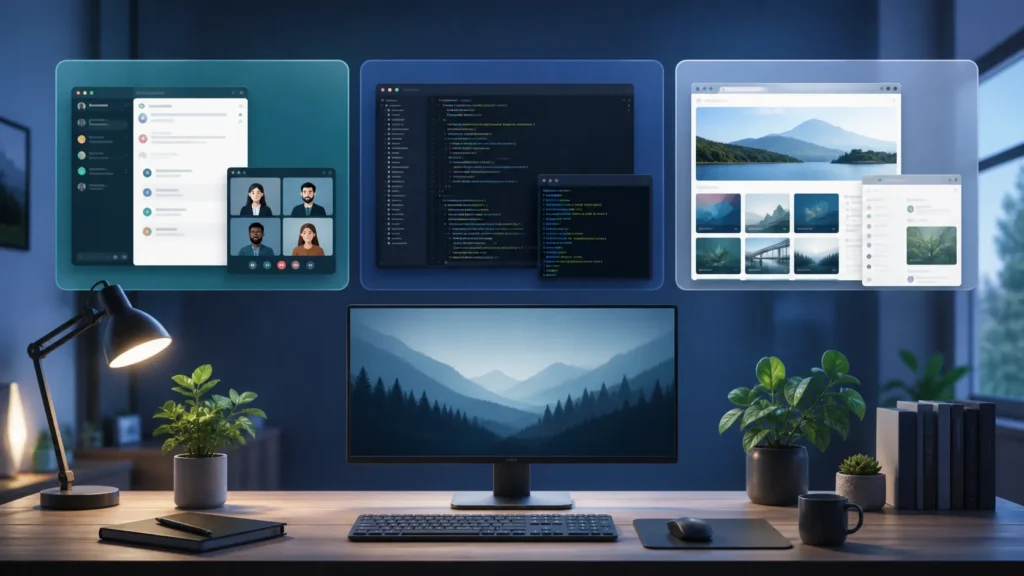
- one space for web browsing;
- one space for communication;
- one space for writing or coding;
- one space for whatever you do not want mixed into the others.
That is not advanced.
That is just tidy.
GNOME treats workspaces as a natural extension of window management
GNOME’s help page is one of the best examples of beginner-friendly documentation because it does not oversell anything. It simply says workspaces help organize windows, and then shows how they behave in the Activities overview.
According to GNOME Help:
- you can navigate between workspaces from the
Activitiesoverview; - when more than one workspace is in use, GNOME shows the currently used workspaces plus an empty one;
- dragging a window to the empty workspace creates and populates that workspace;
- closing or moving all windows out of a workspace removes it;
- there is always at least one workspace.
I like this model because it feels alive rather than rigid.
You do not have to decide on “I need exactly four desktops forever.”
GNOME lets the structure grow when you need another space and collapse again when you do not.
Ubuntu’s official desktop documentation mirrors the same mental model. It describes workspaces as a way to group applications together and points beginners toward the Activities overview for moving windows and switching between workspaces.
That is why GNOME often feels so approachable here. It treats workspaces less like a configuration project and more like part of normal desktop movement.
KDE Plasma gives you virtual desktops, but it also gives you more visible control
KDE Plasma’s documentation uses the phrase virtual desktops, and the tooling around it feels a little more explicit.
The official Plasma panel documentation says the optional Pager widget allows you to switch between virtual desktops. It also notes that changing the pager layout affects the layout and animations shown in KWin’s Desktop Grid effect.
That detail says a lot about KDE’s personality.
Where GNOME often hides complexity behind a smoother default flow, KDE is more willing to show you the machinery:
- there is a pager;
- there are multiple desktops;
- there are layouts;
- there are effects and shortcuts you can tune.
KDE’s shortcut documentation also makes virtual desktops feel concrete. It lists direct shortcuts like:
Ctrl+F1for Desktop 1Ctrl+F2for Desktop 2Ctrl+F3for Desktop 3Ctrl+F4for Desktop 4
That is a very KDE kind of gift.
You do not just get the concept. You get clear levers.
For beginners, that can be either comforting or slightly overwhelming depending on mood. But the upside is that Plasma makes the feature very visible if you decide you like it.
In KDE, virtual desktops and Activities are related ideas, but they are not the same thing
This is one of the most important beginner clarifications.
KDE’s official documentation on Activities says there is a fundamental difference between Activities and virtual desktops: virtual desktops are used to group and organize windows, while Activities are used to group and organize Plasma widgets.
That is a genuinely useful distinction.
If you only remember one sentence from the KDE side, I think it should be that one.
Why?
Because many new users see both features and assume they are duplicates. They are not.
In practical terms:
- virtual desktops help separate window sets;
- Activities help separate broader desktop contexts and the widgets that support them.
So a beginner who only wants cleaner window organization usually needs virtual desktops first, not Activities.
I think this is where many people accidentally overcomplicate their first Linux desktop. They discover a powerful feature and immediately try to master every related abstraction. Most of the time, the calmer move is to start with one simple question:
“Do I just want fewer windows competing in one place?”
If yes, virtual desktops or workspaces are usually enough.
The feature becomes useful the moment you assign it a simple job
The biggest mistake beginners make with workspaces is trying to invent the perfect system before they have any habit at all.
I think a much better starting point is embarrassingly simple:
- Workspace 1: browser and general browsing
- Workspace 2: messages, chat, email
- Workspace 3: writing, documents, code editor
That is enough to feel the benefit.
GNOME’s approach supports this almost naturally because dragging windows in the overview makes the separation feel spatial. KDE’s approach supports it nicely too, especially if you add a pager to the panel or learn one or two desktop-switching shortcuts.
You do not need ten desktops.
You do not need a grand taxonomy.
You need one moment where the desktop stops feeling like a stack of interruptions.
That is when the feature starts making emotional sense.
Shortcuts help later, but they are not the beginning
KDE’s documentation clearly values shortcut-driven control, and that is great once you already like the feature. GNOME also becomes faster once the overview and navigation become muscle memory.
But I would not force shortcuts too early.
For beginners, I think the correct order is:
- understand that these spaces are just grouped windows;
- create two or three intentional groups;
- move windows between them a few times;
- only then bother memorizing shortcut habits.
Otherwise the feature feels like homework instead of relief.
And relief is really the point.
My favorite beginner mindset is to treat workspaces as “mess boundaries”
This is the phrasing that finally made the feature stick for me.
Every task creates visual mess:
- browser tabs;
- chat alerts;
- terminals;
- file manager windows;
- documents you still need open but do not want to stare at constantly.
Workspaces and virtual desktops let you put boundaries around that mess without closing everything.
That is why they are so good for Linux beginners. The desktop becomes more breathable without becoming less capable. You are not doing less. You are just distributing it better.
Verification note: Commands, terminology, and support details in this guide were cross-checked against GNOME’s workspace documentation.
For broader context, continue with Trying Linux Without Installing: A Guide to Live USBs and How I Run Alpine-Based LXC Containers for Ultra-Lightweight Homelab Services.
Conclusion
Linux workspaces and virtual desktops are much easier to understand than their names suggest. GNOME describes them as groups of windows that reduce clutter and help navigation, and its dynamic workspace model makes them feel natural and low-friction. KDE Plasma gives you explicit virtual desktop controls, pager support, and direct shortcuts, while also keeping Activities as a separate concept for organizing desktop widgets and broader contexts.
For most beginners, that is more than enough to start with one simple habit: stop putting every window in one place. Once you use workspaces as gentle boundaries between tasks, the Linux desktop starts feeling calmer, and that calm is often what makes the system feel truly usable day after day.
FAQ
Are Linux workspaces and virtual desktops the same thing?
In beginner practice, they usually serve the same purpose: separating groups of windows into different desktop spaces. GNOME’s help even describes workspaces as acting like virtual desktops. The naming varies a bit between desktop environments, but the practical idea is very similar.
What is the difference between KDE virtual desktops and Activities?
According to KDE’s own documentation, virtual desktops are for organizing windows, while Activities are for organizing Plasma widgets and broader desktop contexts. If your goal is simply to separate open application windows, virtual desktops are usually the feature to start with.