One of the first things Linux teaches you is that software can arrive through more than one channel.
At first that can feel empowering.
Then it can feel messy.
You install one app from your distro repository, another from Flatpak, and then you hear someone say Snaps are better, worse, slower, cleaner, more universal, less native, or somehow morally suspect depending on which forum thread you opened by mistake.
What helped me most was stepping away from the argument and asking a calmer question:
How do I actually install, update, inspect, and remove these packages with confidence?
That question is much more useful than team sports.
- What Flatpaks and Snaps are trying to solve
- How Flatpak installation and remotes work
- How Snap installation and refresh behavior work
- The day-to-day commands that matter most
- How I decide which one to use without overthinking it
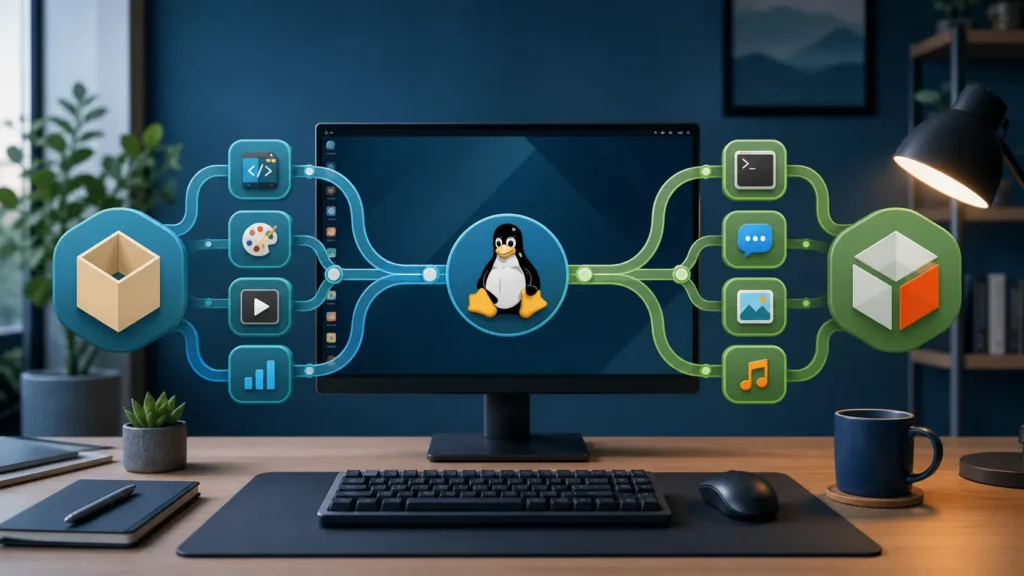
Flatpaks and Snaps both try to make app delivery easier across Linux, but they feel different in practice
Flatpak’s official introduction says Flatpak allows applications to be installed and run on virtually any Linux distribution, and it highlights ideas like desktop integration, sandboxing, deduplicated libraries, and delta updates.
Snapcraft’s glossary and getting-started documentation describe snaps as app packages for desktop, cloud, and IoT, managed through the snap command and the snapd daemon.
That already shows the personality difference.
Flatpak feels very desktop-application focused in the way many Linux users first encounter it.
Snap feels more service-backed and system-integrated in the way its tooling presents itself.
I do not think beginners need to turn that into ideology.
They just need to understand the shape of each tool.
In practical terms:
- Flatpak revolves around installations, remotes, applications, and runtimes;
- Snap revolves around the snap daemon, store-backed installs, and refresh-based updates.
Once you see that, the commands stop feeling arbitrary.
Installing and using Flatpak starts with the tool itself and then the remote
Flatpak’s own docs say the setup method depends on the distribution. After Flatpak itself is installed, one of the most common next steps is adding a remote such as Flathub.
The Flatpak documentation gives the command directly:
flatpak remote-add --if-not-exists flathub https://dl.flathub.org/repo/flathub.flatpakrepo
I think this is one of the most important beginner ideas in Flatpak:
you are not only installing an app manager, you are also defining where it should fetch apps from.
That remote model makes Flatpak feel very explicit.
Once the remote exists, the usual day-to-day commands are wonderfully direct. The Using Flatpak documentation and command reference show the core lifecycle clearly:
flatpak install flathub org.gnome.Calculator
flatpak list
flatpak update
flatpak uninstall org.gnome.Calculator
Flatpak also documents a --user mode for many commands, which means you can install applications per user rather than system-wide:
flatpak install --user flathub org.gnome.Calculator
The docs also note that Flatpak installs apps system-wide by default, while --user changes that behavior. I like that this distinction is visible and deliberate instead of hidden in guesswork.
Snaps start with snapd, and that detail matters more than people think
Snap documentation makes one thing very clear: the snap daemon, snapd, is the background service that manages snaps, and it needs to be installed and running before snaps can be used.
On many systems this is already present.
On some it is not.
Snapcraft’s Ubuntu installation guide shows the straightforward command:
sudo apt update
sudo apt install snapd
Other distributions have their own install instructions, but the conceptual point is the same: Snap is not just a package format you casually invoke. It depends on its daemon layer being there and working.
After that, Snapcraft’s getting-started documentation gives the basic commands:
snap find vlc
sudo snap install vlc
snap list
sudo snap remove vlc
This is where Snap often feels beginner-friendly.
There is less remote setup to think about in the common case. You search, install, list, and remove through one store-oriented flow.
But that convenience comes with its own mental model: updates are handled as refreshes, and the daemon is part of the story whether you think about it every day or not.
Updates are one of the biggest practical differences in how the two systems feel
Flatpak’s docs keep update management very explicit:
flatpak update
That command updates installed Flatpak apps and runtimes. The docs also mention cleanup-oriented commands like:
flatpak uninstall --unused
flatpak repair
I like this because Flatpak makes it fairly easy to think in terms of:
- install app;
- update app and runtime;
- clean up unused dependencies later.
Snap’s documentation frames updates as refresh operations:
sudo snap refresh
snap refresh --time
snap refresh --list
Snapcraft also documents hold and unhold behavior for updates, which is useful when you need tighter control, and it emphasizes tools like snap changes and snap tasks to inspect what actually happened during a refresh.
That is an important practical difference.
Flatpak often feels like a package set you deliberately update.
Snap often feels like a managed ecosystem that has its own refresh rhythm, even if you can still intervene manually.
Neither model is automatically better. They just create different expectations.
Removing apps is simple in both systems, but the cleanup story is not identical
For Flatpak, removal is direct:
flatpak uninstall org.gnome.Calculator
And when you want to clean up dependencies that are no longer needed, the docs explicitly recommend:
flatpak uninstall --unused
That command is one of the reasons Flatpak feels tidy when you use it regularly. It acknowledges that runtimes and extensions may stick around after app removal and gives you an official way to clean them up.
Snap removal is also straightforward:
sudo snap remove vlc
But Snapcraft’s documentation adds an important behavioral detail: removing a snap normally creates an automatic snapshot of its data, and those snapshots are retained for a period unless explicitly forgotten. The docs also note that --purge removes a snap without generating that snapshot:
sudo snap remove vlc --purge
I think this is a good example of how the two ecosystems reveal different priorities.
Flatpak’s removal story makes me think about runtimes and cleanup.
Snap’s removal story makes me think about snapshots and possible rollback value.
That is useful context, not just trivia.
There are a few commands that matter much more than the rest
If I were teaching someone the shortest useful command set for both, I would keep it here.
Flatpak
flatpak remotes
flatpak install flathub org.gnome.Calculator
flatpak list
flatpak update
flatpak info org.gnome.Calculator
flatpak uninstall org.gnome.Calculator
flatpak uninstall --unused
Snap
snap find vlc
sudo snap install vlc
snap list
sudo snap refresh
snap info vlc
sudo snap remove vlc
snap refresh --time
That is already enough to live with both tools comfortably.
Beginners often think they need a giant command reference before they are “allowed” to use package systems properly. They usually do not. What they need is a clean mental map and six or seven commands they genuinely understand.
I think the healthiest way to choose between them is to stay practical
This is the part where people often expect a verdict.
I do not think a universal verdict is very helpful.
Instead, I ask a few smaller questions:
- Is the app I want better maintained or more trusted in one format on my system?
- Do I want explicit remote-based control and clear user-vs-system installation options?
- Do I want the Snap store flow and snapd-managed refresh behavior?
- Do I care about cleanup of runtimes, or do I care more about snapshot-aware removal and service-style integration?
That usually gets me closer to a real answer than any abstract “which is better” debate.
And honestly, many Linux users end up with a mixed reality anyway. A distro package for one tool, a Flatpak for a desktop app, and a Snap for something that is easiest to consume that way. The calmer you are about that, the less package management starts feeling like identity politics.
Verification note: Commands, terminology, and support details in this guide were cross-checked against Flatpak’s official usage documentation and Snapcraft’s official getting-started guide.
For broader context, continue with Trying Linux Without Installing: A Guide to Live USBs and How I Run Alpine-Based LXC Containers for Ultra-Lightweight Homelab Services.
Conclusion
Flatpaks and Snaps are easier to manage once you stop trying to crown a winner and start learning their operational habits. Flatpak gives you a remote-based model with explicit installs, updates, per-user options, and cleanup through commands like flatpak uninstall --unused. Snap gives you a daemon-backed ecosystem with store-oriented installs, refresh-based update behavior, and removal options that can preserve or purge app data intentionally.
That is the version of the topic I trust most: not ideological, just useful. Learn how each tool installs software, where it gets that software from, how it updates it, and what happens when you remove it. Once those basics feel normal, both Flatpaks and Snaps become much less confusing and much easier to live with.
FAQ
Should I install the same app as both a Flatpak and a Snap?
Usually, I would avoid that unless you have a specific reason to compare behavior. It is simpler to choose one package source for a given app so updates, settings, and troubleshooting stay easier to follow.
Why does Flatpak talk about remotes while Snap talks about snapd and refreshes?
Because the tools are organized differently. Flatpak emphasizes installations and remotes such as Flathub, while Snap is built around the snap daemon and its store-backed refresh model. The difference is not just branding; it affects how you think about setup, updates, and removal.