One of the first questions many Windows users ask in Linux is also one of the most revealing:
"Where is C:?"
I think that question matters because it shows exactly where the confusion begins.
A Windows user is not lost because folders are hard.
They are lost because the old map no longer matches the territory.
Linux is not hiding the drive.
It is using a different organizing idea.
Once that idea clicks, the filesystem stops feeling mysterious and starts feeling surprisingly elegant.
- Why Linux has no C: drive
- What the single root tree actually means
- The Linux directories beginners should learn first
- What maps loosely to Windows and what does not
- How to stop feeling lost when browsing Linux folders
The steps and terminology below are checked against the Linux Foundation's Filesystem Hierarchy Standard; menu names and behavior can vary by operating-system release and hardware.
Linux starts from one root, not from separate drive letters
This is the whole article in one sentence.
Linux does not begin with C:, D:, and E:.
It begins with /.
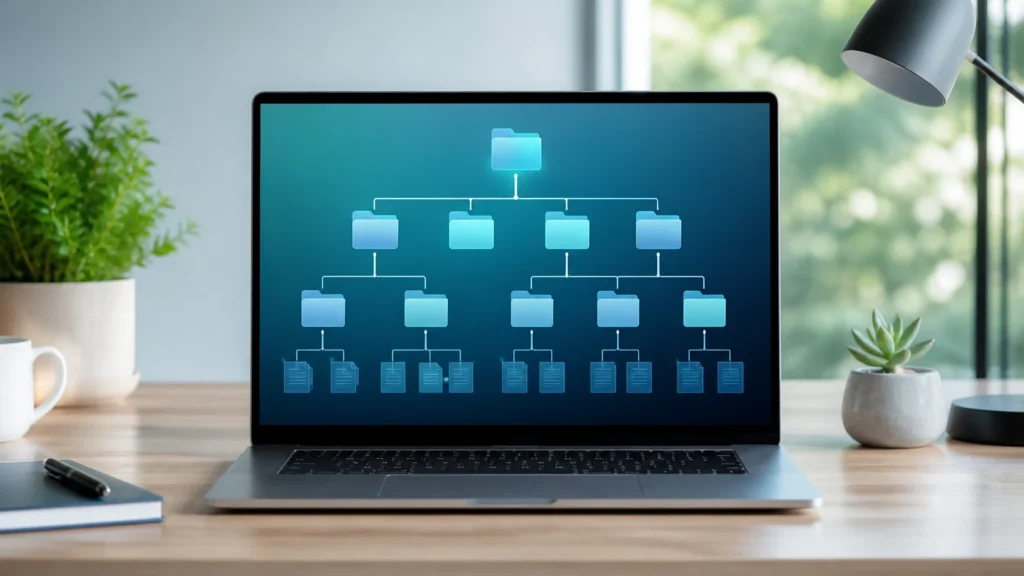
That single slash is called the root of the filesystem tree.
The Linux Foundation’s Filesystem Hierarchy Standard describes the root filesystem as the top-level structure that contains the directories needed to boot, restore, recover, and repair the system. The practical beginner takeaway is simpler:
everything is attached somewhere under one tree.
That means:
- your files live somewhere under that tree;
- system configuration lives somewhere under that tree;
- removable drives appear somewhere under that tree;
- even other disks and partitions are attached somewhere under that tree.
So Linux is not saying, "Here are several lettered islands."
It is saying, "Here is one world, and different things are mounted into it."
That is a very different mental model.
In Linux, disks are mounted into the tree instead of becoming letters
This is usually the moment where the idea becomes easier to hold.
On Windows, plugging in another disk often gives you another drive letter.
On Linux, that disk is usually mounted into a directory path somewhere under /media, /mnt, or another mount point chosen by the system or the user.
So instead of thinking:
"This is my D: drive,"
Linux tends to think:
"This filesystem is available at this path."
That is why a USB stick might appear at a path such as:
/media/yourname/USB_NAME
instead of becoming E:.
And once you understand that, Linux starts to feel less like it is missing something and more like it is expressing the same idea more consistently.
The root / is not the same thing as /root
This confuses a lot of beginners, and honestly it is a fair confusion.
The single slash / means the top of the entire filesystem tree.
But /root is usually the home directory for the root user, which is the administrative superuser account. The Filesystem Hierarchy Standard explicitly lists /root as the home directory for the root user.
So:
/means the top of everything;/rootis one specific directory inside that tree.
That distinction is worth learning early because it removes one of the most common first misunderstandings.
/home is the place that feels most like the part of Windows users actually care about
If someone is brand new to Linux, this is one of the first places I would teach.
The Filesystem Hierarchy Standard describes /home as the location for user home directories.
That means your personal files usually live under a path like:
/home/alex
Inside that home directory you will typically keep:
- Documents;
- Downloads;
- Pictures;
- Desktop;
- Music;
- Videos;
- and also hidden configuration files or folders that start with a dot.
If you are coming from Windows, this is the area that most closely resembles the emotional role of:
C:\Users\YourName
It is not a perfect one-to-one match, but it is the closest useful beginner comparison.
/etc is where system configuration lives
The Filesystem Hierarchy Standard describes /etc as host-specific system configuration.
That wording is dry.
The practical meaning is not.
This is where Linux keeps many important configuration files for the system itself.
When tutorials tell you to edit things like:
- network settings;
- service configs;
- hostname files;
- package source lists;
- daemon configuration;
there is a good chance you will eventually be looking somewhere under /etc.
This is one reason Linux feels different from Windows so quickly.
A lot of configuration is more visible.
Not always simpler.
But visible.
/usr does not mean your personal user folder
This is one of the most misleading names for a beginner.
A new user sees /usr and naturally thinks:
"Ah, user stuff."
But that is not what it means in modern practical usage.
Historically, /usr has a deeper Unix story behind it. For a beginner, the important point is that /usr is where a large amount of userland software, binaries, libraries, documentation, and shared data live. The Filesystem Hierarchy Standard and modern file-hierarchy references both treat /usr as a major location for installed system software and related resources.
So if /home is where your personal life lives, /usr is much closer to:
"a big part of the installed operating system and application world."
This is why /usr is not the Linux equivalent of C:\Users.
/var is for data that changes while the system is being used
This is another directory that becomes easier once you stop trying to map it literally to Windows.
The Filesystem Hierarchy Standard defines /var as variable data.
That typically includes things such as:
- logs;
- caches;
- spool files;
- databases for some services;
- package manager state;
- web or application data depending on the software.
The spirit of /var is:
"data that the system or services keep changing over time."
If /etc is about configuration and /usr is about installed software content, /var is often where ongoing operational churn happens.
/tmp is where temporary files go
This one is refreshingly straightforward.
The Filesystem Hierarchy Standard defines /tmp for temporary files.
In practice, this is where many programs place short-lived working files.
Not precious data.
Not long-term personal storage.
Temporary material.
That is why it is usually a bad idea to treat /tmp like a safe home for things you care about keeping.
/media and /mnt are where newcomers usually first notice the mounting model
These two directories help make the "no drive letters" idea concrete.
The Filesystem Hierarchy Standard describes:
/mediaas a mount point for removable media;/mntas a mount point for a temporarily mounted filesystem.
This is why external USB drives or memory cards often appear under /media, while manual or temporary mounts often get placed under /mnt or a custom mount path.
So if you are looking for "Where did Linux put my other drive?" the answer is often not a letter.
It is a mount point.
/opt is where add-on software may live
The Filesystem Hierarchy Standard describes /opt as the place for add-on application software packages.
This is one of those directories that helps explain Linux’s tidy instinct.
Some software, especially software that is more self-contained or installed outside the core package layout, may place files under /opt.
It is not the only way Linux software is installed.
But it is a useful directory to recognize when browsing the system.
/dev and /proc feel strange at first because Linux shows more of the machine directly
These are the directories where many beginners realize Linux is simply more literal about exposing the system.
The Filesystem Hierarchy Standard defines /dev for device files.
That means hardware and pseudo-devices are represented there in filesystem form.
/proc, meanwhile, is one of those places that can feel almost unreal the first time you open it. It represents process and kernel information rather than "normal files" in the everyday sense.
You do not need to master either one on day one.
But it helps to know they exist because they explain why Linux can feel both more transparent and more intimidating at first glance.
The closest useful Windows comparisons are only partial
I think beginners do better when we allow approximate comparisons without pretending the systems are identical.
Here is the version I would keep in mind:
/home/yournameis roughly the emotional equivalent ofC:\Users\YourName/etcis where a lot of system configuration lives/usrcontains much of the installed software world, not your personal user folder/varcontains changing operational data such as logs and caches/mediaor/mntare often where other filesystems appear
But I would not force Linux into a fake Windows mold too aggressively.
Because the real shift is not:
"What folder equals what folder?"
It is:
"Linux organizes everything as one rooted tree with mount points and role-based directories."
That is the idea worth learning.
The beginner mistake is trying to memorize every directory before the model makes sense
You do not need the whole hierarchy in your head immediately.
I would learn it in layers:
- Learn that
/is the top. - Learn that disks mount into the tree instead of becoming letters.
- Learn
/home,/etc,/usr,/var,/tmp,/media, and/mnt. - Let the rest become familiar gradually through use.
That is enough.
This is also one reason trying Linux in a low-pressure way, like a live USB session, can help the filesystem stop feeling theoretical. The same map becomes operational when you manage a focused system such as an Alpine-based LXC service.
You are not missing a piece. You are learning a different organizing rule: one tree, one root, many mount points, and directories named by purpose instead of by old habits.
For the next practical step, continue with 20 Essential Linux Terminal Commands Every User Should Know; it builds on the same shift from unfamiliar terminology to repeatable habits.
Conclusion
The Linux filesystem hierarchy feels confusing mostly when you try to read it with Windows expectations. Linux does not center the experience around C: and other drive letters. It centers the experience around one unified tree that begins at /, with filesystems mounted into that tree and major directories given role-based meanings such as /home, /etc, /usr, /var, /tmp, /media, and /mnt.
Once that mental model clicks, Linux usually stops feeling disorganized.
In a strange way, it starts feeling more organized than before.
FAQ
Where is the C: drive in Linux?
There usually is no C: drive concept in Linux. Linux uses one filesystem tree that starts at /, and disks or partitions are mounted somewhere inside that tree instead of being assigned drive letters.
What is the Linux equivalent of C:\Users\YourName?
The closest useful comparison is usually /home/yourname, which is where personal user files and home-directory content typically live.
Why is /usr not my user folder?
Because /usr is historically and practically a system software location, not a personal home directory. For your own files, /home/yourname is the place to start.
Where do USB drives appear in Linux?
Often under /media for removable media, though some manual or temporary mounts may appear under /mnt or another mount point chosen by the system or the user.
What should a beginner learn first in the Linux filesystem?
Learn the model before the trivia: / as the top, mount points instead of drive letters, and the roles of /home, /etc, /usr, /var, /tmp, /media, and /mnt.