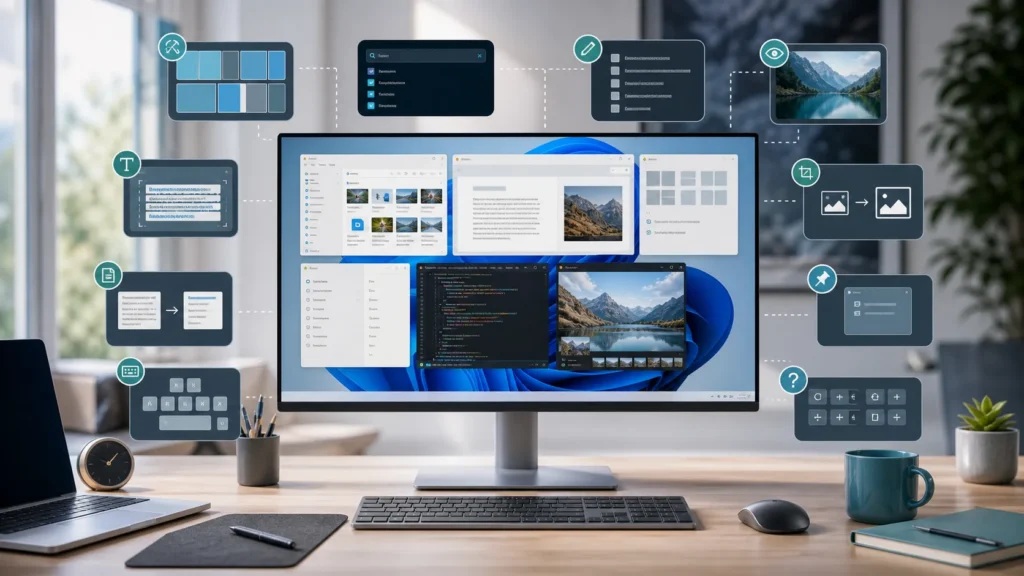
Microsoft PowerToys is one of those projects that sounds slightly more niche than it really is.
If you have never used it, the name can make it feel like a bundle for obsessive tweakers and keyboard acrobats. But once you look at the current utilities, a different pattern appears. Many of them are not extreme at all. They are just small corrections to everyday Windows friction.
That is why I like PowerToys so much. The best utilities in it do not ask you to become a different kind of user. They just remove tiny annoyances that you may have already normalized.
Microsoft’s own overview page now lists more than 25 utilities, so the suite has grown well beyond a few classic favorites. This list is not “the ten most famous.” It is the ten I think are easiest to install, understand, and quietly keep using.
- Why PowerToys is easier to appreciate than it sounds
- The 10 utilities I think earn their keep fastest
- Which ones help beginners immediately
- Which ones start paying off more as your workflow gets heavier
- Why a few PowerToys become hard to give up once they click
1. FancyZones
Microsoft describes FancyZones as a powerful window manager that helps you arrange and snap windows into custom layouts. That sounds modest until you use it for a week.
FancyZones is one of the fastest ways to make a crowded desktop feel intentional. If you regularly keep a browser, notes, chat, documentation, and a terminal visible at the same time, normal snapping starts feeling crude. FancyZones makes layout feel designed instead of improvised.
This is the first PowerToy I would recommend to anyone who works with several windows at once.
2. Command Palette
Command Palette is one of the clearest signs that PowerToys has grown up.
Microsoft describes it as a quick launcher that can launch apps, run commands, search files, browse the web, manage services, switch windows, access clipboard history, and more. The default shortcut is Win + Alt + Space.
I like it because it reduces how often you need to hunt manually through Windows. It is the kind of tool that becomes more useful the more varied your machine usage becomes. Also, Microsoft explicitly frames it as the evolution of PowerToys Run, which is why this is the launcher I would emphasize now.
3. PowerRename
Microsoft’s PowerRename page describes it as a bulk renaming tool with search and replace, regular expressions, preview, and undo support.
If you have ever had a folder full of screenshots, camera files, exported assets, or random downloads that needed cleaner names, PowerRename is the moment where Windows starts feeling less stubborn. It saves exactly the kind of repetitive file work that people often assume requires a third-party app.
This pairs especially well with what I wrote in the File Explorer article: better organization matters more when the renaming step stops being annoying.
4. Peek
Microsoft says Peek lets you preview file content without opening multiple applications or interrupting your workflow. It supports images, Office documents, videos, web pages, Markdown, text, developer files, and folder summaries.
That is a much bigger quality-of-life feature than it first sounds.
Peek is one of those tools you do not miss until you have it. Once you get used to glancing at a file without fully opening the associated application, a lot of small interruptions disappear.
5. Text Extractor
Microsoft describes Text Extractor as an OCR utility that lets you copy text from anywhere on your screen, including inside images or videos.
This is one of the most obviously magical PowerToys the first time you use it. Error message in a dialog box? Text inside an image? A web video frame? Something that cannot be copied normally? Text Extractor turns all of that into something reusable.
It is especially useful for note-taking, troubleshooting, and small admin tasks where retyping is pure waste.
6. Advanced Paste
Advanced Paste is one of the newer-feeling utilities in the suite, and it deserves the attention.
Microsoft says it can transform clipboard content into formats like plain text, Markdown, JSON, .txt, .html, and .png, and can even extract text from images or transcode audio and video files into .mp3 or .mp4.
That is a lot of power for something that starts from “paste, but better.”
I like it because it fits a very modern Windows reality: the clipboard is no longer just temporary storage. It is a workflow surface, and PowerToys is treating it that way.
7. Keyboard Manager
Microsoft’s Keyboard Manager utility lets you remap keys, create custom shortcuts, and even map keys to text sequences.
This is where PowerToys becomes personal in a really practical sense. A key you never use can become one you do. An awkward shortcut can become a natural one. A repetitive text snippet can become one gesture.
It also sits nicely next to the larger Windows productivity story. In the keyboard shortcuts piece, the idea was that small input improvements scale surprisingly well. Keyboard Manager is that principle taken one step further.
8. Always On Top
Microsoft describes Always On Top as a system-wide utility that lets you pin a window above others, with the default shortcut Win + Ctrl + T.
This sounds simple because it is simple, and that is exactly why it belongs here.
There are moments where one window really does deserve to stay visible:
- notes beside a video call;
- a calculator beside a spreadsheet;
- a reference window beside a browser;
- monitoring or status information beside active work.
Always On Top solves one small problem very directly, and small direct solutions are often the best PowerToys.
9. Image Resizer
Microsoft’s Image Resizer page says it can resize images from File Explorer, including drag-and-drop right-click workflows for quickly saving resized copies.
This is one of the most practical utilities in the whole suite for ordinary users. If you ever send screenshots, post images online, reduce file sizes, or prepare assets quickly, Image Resizer turns a multi-step task into a right-click habit.
Not every productivity tool needs to look sophisticated. Sometimes the best one is just the one that removes ten boring clicks.
10. Shortcut Guide
Microsoft’s Shortcut Guide now acts as a searchable reference for shortcuts, not only for Windows and PowerToys but also for many supported apps. The default activation shortcut is Win + Shift + ?.
I think this is one of the best “learning” tools in the suite, because it helps you become better at the rest of Windows instead of only improving one isolated task. It can surface shortcuts for the foreground app and even lets you pin the ones you use most.
This makes it ideal for people who know shortcuts are useful but never remember them at the right moment.
Why these ten rise above the rest for me
PowerToys now includes a lot of impressive utilities, and several others are genuinely strong. But these ten rise to the top for me because they improve very common moments:
- arranging windows;
- launching things;
- renaming files;
- previewing files;
- extracting text;
- pasting more intelligently;
- reshaping keyboard behavior;
- pinning one important window;
- resizing images;
- learning shortcuts faster.
That is a very broad slice of normal Windows life.
The more I think about it, the more I believe that is the real strength of PowerToys. The suite does not try to replace Windows. It tries to sand down the rough edges.
What I wish I knew earlier
I wish I had realized sooner that PowerToys does not need to be adopted all at once.
You do not install it and suddenly become a power user.
You install it, turn on one utility, and notice one annoyance disappear.
Then another.
Then another.
That is why the suite can sneak up on you. A few of the tools feel optional right until they become normal. And once they become normal, going back feels oddly primitive.
Verification note: Commands, terminology, and support details in this guide were cross-checked against Microsoft’s PowerToys documentation.
For broader context, continue with How to Map a Network Drive in Windows for Easy File Sharing and Why Total Commander Still Has a Cult Following Among Techies.
Conclusion
My top 10 Microsoft PowerToys are FancyZones, Command Palette, PowerRename, Peek, Text Extractor, Advanced Paste, Keyboard Manager, Always On Top, Image Resizer, and Shortcut Guide. Not because they are the flashiest, but because they each remove a kind of friction that shows up constantly in real Windows use.
That is what makes PowerToys so easy to recommend. The best utilities are not there to impress you. They are there to make Windows feel slightly less wasteful, slightly more personal, and much easier to live in every day.
FAQ
Do I need to use all of PowerToys for it to be worth installing?
No. PowerToys is easiest to appreciate one utility at a time. Even turning on only one or two of the right tools can make the install worthwhile.
Is Command Palette replacing PowerToys Run?
Microsoft currently describes Command Palette as the evolution of PowerToys Run, and it is clearly the more forward-looking launcher to learn now.
Which PowerToy helps most with organizing lots of windows?
FancyZones is usually the strongest answer there because it lets you define and reuse custom window layouts much more flexibly than standard snapping.
Which PowerToy is best for files?
That depends on the task. PowerRename is excellent for bulk renaming, Peek is great for previews, and Image Resizer is a very practical right-click utility for everyday image work.
Which PowerToy feels most “surprisingly useful” to beginners?
Text Extractor is often the one that creates that reaction fastest, because copying text out of images, videos, and non-selectable areas still feels a little magical the first time.