When hardware problems begin in Windows, they rarely introduce themselves politely.
You do not usually get one neat message that says, “Hello, this is bad RAM.” Instead you get a mess of symptoms that all feel a little too broad:
- random restarts;
- blue screens;
- app crashes;
- corrupted installs;
- freezes that seem to happen for no elegant reason.
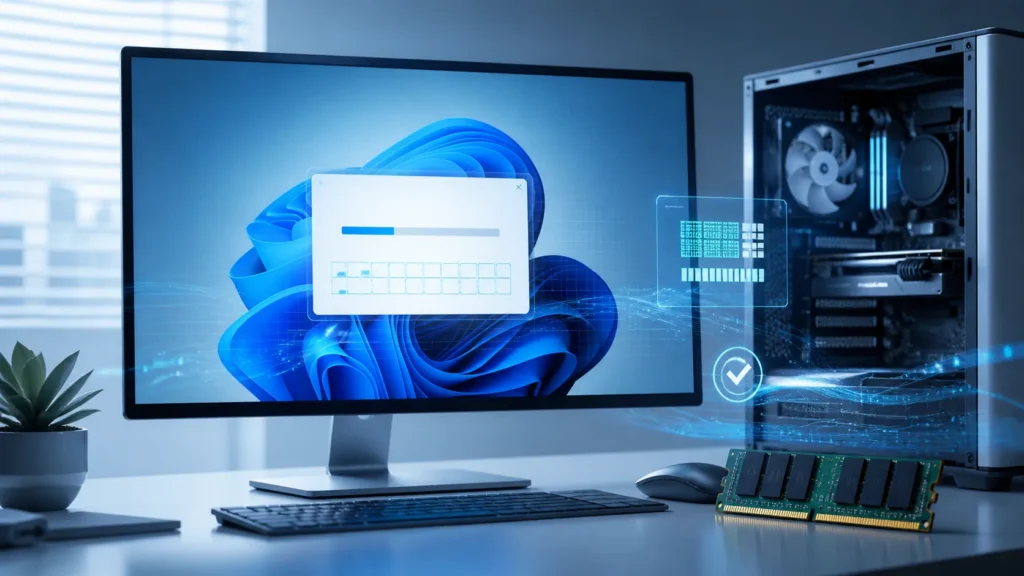
That is why I still appreciate Windows Memory Diagnostic so much. It is built in, it does not ask you to start with third-party tools, and it gives you a clean first test when memory becomes part of the suspicion.
It is not the whole diagnosis.
But it is a very good beginning.
- When Windows Memory Diagnostic is worth running
- How to launch it cleanly
- Where to find the results afterward
- What a pass or failure really means
- How I would continue the investigation from there
Run it when the symptoms make RAM a believable suspect
The official Microsoft support article for IRQL_NOT_LESS_OR_EQUAL is useful here because it lists memory problems among the usual causes and specifically recommends checking the device’s memory with Windows Memory Diagnostic.
That is the right kind of clue.
I would think about this tool when the system is showing:
- unexplained blue screens;
- instability under load;
- random application crashes across unrelated apps;
- weird install failures or corruption;
- a machine that feels less predictably reliable than it used to.
What I like about the tool is that it narrows one branch of the tree early. Instead of treating every crash as one big mystery, you can at least ask whether the machine shows obvious signs of memory failure under a built-in test.
The launch path is simple, and that simplicity matters
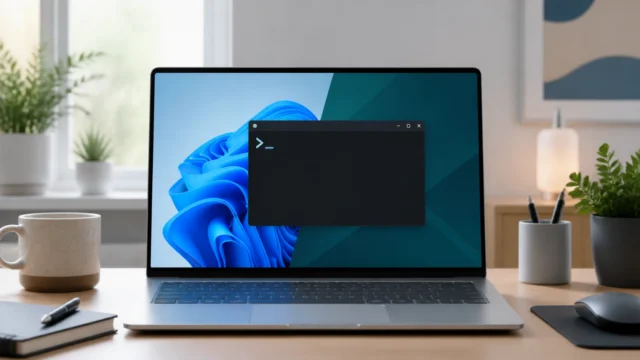
Microsoft’s support guidance is refreshingly plain. In the stop-code article, Microsoft says to open Run, type mdsched, and continue from there. The Surface troubleshooting article gives an equally simple path through Windows search: type memory, open Windows Memory Diagnostic, and choose Restart now and check for problems.
That is exactly the level of friction I want from a first-pass hardware test.
No bootable external tool yet.
No vendor utility hunt.
No elaborate setup.
You schedule the test, the machine restarts, and Windows runs the diagnostic before the normal desktop session comes back. That matters because memory testing is more trustworthy when it is not competing with a fully loaded user environment in the usual way.
The test result does not live only in the little pop-up you might miss
This is the part many people overlook.
Microsoft says a notification may appear in the notification area after sign-in with the test result, but if it does not appear, or if you miss or dismiss it, the result can be reviewed in Event Viewer.
That is important because the pop-up is not where I place my trust anyway.
Microsoft’s support steps point to Event Viewer, and specifically to the memory-diagnostics result area under Event Viewer. Their broader Event Viewer support article also reminds us why that matters: Event Viewer is there to provide detailed records of system events, sources, messages, and timing that are invaluable for troubleshooting.
So if I run the tool, I do not stop at “I think Windows said it was fine.”
I check the logged result.
Event Viewer is where the tool stops feeling vague
The Microsoft support article for the stop-code workflow says to open Event Viewer and navigate to the memory diagnostics results area to review the messages from each memory test run.
That is where the test becomes more than a passing reboot ritual.
The logged result gives you something durable:
- whether the test completed;
- whether Windows recorded detected memory errors;
- and whether the result matches the story the machine has been telling you.
Even if you are not someone who lives inside Event Viewer, this is one of the cases where it is worth the visit. Hardware suspicion without logs becomes superstition very quickly.
A clean pass is comforting, but it is not a philosophical proof of innocence
This is where I think people need the calmest expectations.
If Windows Memory Diagnostic passes, that is good news. It means the tool did not detect obvious memory errors in that run. But I would not interpret that as “RAM is impossible to blame now.”
Why not?
Because troubleshooting is rarely that clean.
Intermittent faults can be difficult.
Marginal instability can hide.
A system can still have driver problems, overheating, firmware issues, storage trouble, or other hardware faults that mimic memory trouble emotionally.
So a pass should narrow suspicion.
It should not end thought.
That is why I treat the tool as a first-pass filter, not a final courtroom verdict.
A failure matters, but it still needs disciplined follow-up
If Windows reports hardware errors in the memory test, that is much more serious.
At that point I would stop pretending the issue is random bad luck and start treating RAM or the memory path as a primary suspect. But even then, the mature next step is not blind panic. It is controlled isolation.
What changed recently?
Was memory added?
Was the machine moved?
Is the instability constant or workload-specific?
The built-in tool has already done the useful first job: it told you memory deserves serious attention. After that, the investigation becomes more physical and methodical, not more emotional.
How I would use it in a real troubleshooting flow
If I suspect hardware instability in Windows, my order would usually look like this:
- run Windows Memory Diagnostic first because it is built in and low friction;
- review the result in Event Viewer instead of relying on memory of a pop-up;
- if it fails, treat RAM or memory-related hardware seriously right away;
- if it passes, widen the investigation to drivers, storage, thermals, firmware, and other causes.
I like this order because it respects the tool without worshipping it.
Windows Memory Diagnostic is useful precisely because it answers one important question early. It does not answer every question. But when hardware uncertainty is spreading everywhere, getting one branch of the answer tree under control is already a meaningful win.
Verification note: Commands, terminology, and support details in this guide were cross-checked against Microsoft’s Windows Memory Diagnostic guidance.
For broader context, continue with How to Map a Network Drive in Windows for Easy File Sharing and Why Total Commander Still Has a Cult Following Among Techies.
Conclusion
Windows Memory Diagnostic is one of the best built-in starting points for suspected RAM-related instability because it is easy to launch, runs outside the normal desktop session, and records results you can review later in Event Viewer. That makes it much more valuable than a vague “maybe memory is bad” hunch and much safer than jumping immediately into random internet fixes.
The important part is knowing how to interpret it. A clean pass is useful but not absolute proof that memory can never be involved. A failure is serious, but it still needs disciplined follow-up rather than panic. Used that way, the tool does exactly what a good built-in diagnostic should do: it gives you a calmer first step when the machine starts behaving like it can no longer be trusted.
FAQ
How do I start Windows Memory Diagnostic quickly?
One fast official method is to open Run, type mdsched, and continue from there. You can also search for Windows Memory Diagnostic from the Start menu and choose to restart and check for problems.
Where do I find the results if I miss the notification after reboot?
Microsoft says to check Event Viewer, where the memory-diagnostic results are logged after the test completes. That is the best place to review the result if the on-screen notification is missed or dismissed.