Finder is one of the first Mac apps that feels almost familiar and slightly annoying at the same time.
You can see the folders.
You can click the files.
You can drag things around.
So far, so normal.
And yet many new Mac users still feel a low level of friction there, especially if they came from Windows. The problem usually is not that Finder lacks the tools. The problem is that the tools are organized around a slightly different philosophy.
Finder does not only want to show you files.
It wants to help you think in locations, views, tags, previews, and saved searches.
Once that clicks, keeping a Mac organized becomes much easier.
- What Finder is really for
- Why folders are only the first layer of organization
- How tags and Smart Folders change the workflow
- Which Finder views help most in daily use
- How to make the whole system feel cleaner
The steps and terminology below are checked against Apple's official support guide; menu names and behavior can vary by operating-system release and hardware.
Finder is not only a file browser. It is the Mac’s file workspace
Apple’s Finder documentation describes it as the place where you organize and access most things on your Mac, including files, folders, apps, and disks.
That wording matters.
Finder is not just a place you visit when you lose a document.
It is the structure underneath daily file life on the Mac.
That means it handles:
- where files live;
- how folders appear;
- how tags help you group things;
- how Smart Folders save repeated searches;
- how previews and views reduce guesswork.
If a beginner treats Finder only like a Mac version of File Explorer, it works.
If they treat it like the Mac’s central file workspace, it starts making more sense.
The first layer of organization is still simple folders
Apple’s folder organization guide is pleasantly direct: you can create a folder in Finder with File > New Folder or by pressing Shift-Command-N.
That is still the beginning of good organization.
You do not need a highly artistic system to keep a Mac tidy.
You need a few clear homes:
- documents in one predictable place;
- screenshots in one place;
- temporary downloads handled regularly;
- project folders with names that mean something later.
This matters because clutter does not usually begin with big mistakes.
It begins with lots of tiny “I’ll sort this later” decisions.
The Mac is not different there.
Good folder structure is about reducing future doubt
I think this is the right way to think about it.
The question is not:
"How many folders should I create?"
It is:
"Will future me know where this belongs without guessing?"
That usually leads to calmer naming and calmer structure.
For example:
- one folder per project is better than scattering related files across Desktop, Downloads, and random app exports;
- broader top-level folders are usually better than five levels of premature nesting;
- naming folders clearly is better than trying to remember what “Misc 2” meant.
Finder rewards clarity much more than cleverness.
The sidebar is one of the most important parts of Finder, especially for beginners
New users often focus on the main file window and ignore the sidebar.
That is a mistake.
Apple’s Finder organization pages make it clear that the sidebar is where many of the most stable locations live: Recents, AirDrop, Applications, Desktop, Documents, Downloads, iCloud areas, drives, tags, and more.
That means the sidebar is not decoration.
It is your file map.
A beginner who learns the sidebar early usually feels more grounded, because the machine starts offering consistent places instead of only local folder views.
Tags are the first feature that makes Finder feel smarter than a normal folder tree
Apple’s tag documentation explains that you can tag files and folders with colors or text to make them easier to find, group, and sort. It also says tags work whether files are on the Mac itself or stored in iCloud.
This is where Finder starts becoming more flexible than a pure folder-only mindset.
Folders answer:
"Where does this live?"
Tags answer:
"What kind of thing is this?"
That difference is powerful.
You can keep a file in its correct project folder and still tag it as:
- urgent;
- archive;
- reference;
- invoices;
- writing;
- review later.
That means one file can keep its proper home and still belong to a useful cross-project grouping.
Smart Folders are how Finder turns repeated searching into saved structure
This is one of the most overlooked beginner features on the Mac.
Apple’s Smart Folder guide explains that you can create a Smart Folder by choosing File > New Smart Folder, defining search criteria, and saving the result as a reusable view.
That is a big deal.
Because it means Finder can give you dynamic groups such as:
- all files tagged
writing; - all PDFs created this month;
- all screenshots;
- all files modified today;
- all documents from a specific project pattern.
A Smart Folder does not move the files.
It organizes access to them.
I think that distinction helps a lot.
It keeps the real storage layout clean while still making repeated retrieval faster.
Finder views matter more than people expect
Apple’s view documentation says you can display folders in Icon, List, Column, or Gallery view and customize how each view behaves.
For beginners, this is not a cosmetic detail.
Different views support different kinds of thinking:
- Icon view feels visual and simple, but can become messy if overused.
- List view is great when names, dates, sizes, and sorting matter.
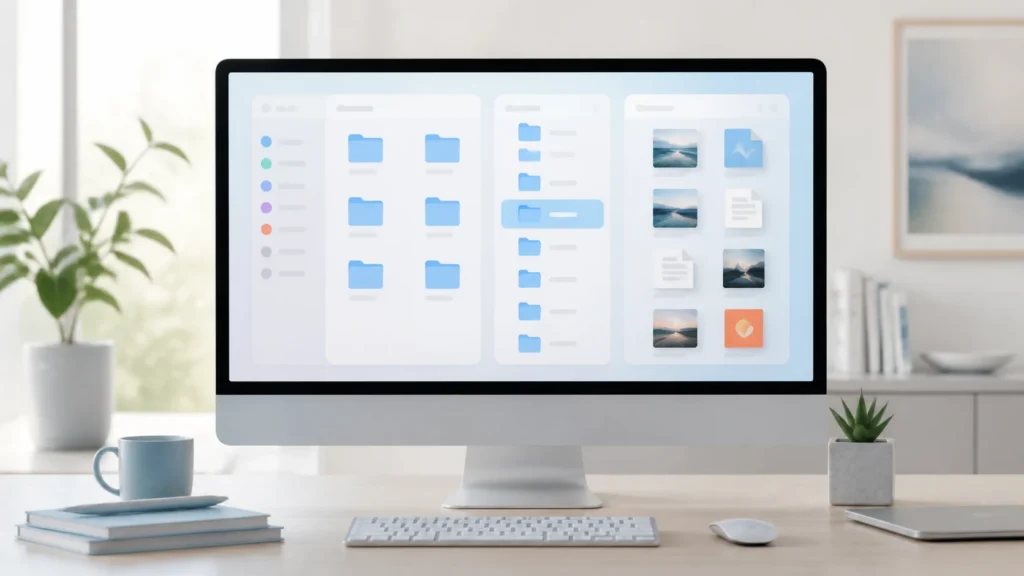
- Column view is excellent for understanding folder depth without opening a pile of separate windows.
- Gallery view works well when large previews help you identify files quickly.
If Finder feels chaotic, sometimes the answer is not more folders.
Sometimes the answer is just choosing the view that fits the task.
Column view is one of the most underrated ways to feel less lost
I think beginners benefit from this view earlier than they expect.
Column view gives a clearer sense of parent folder, current folder, and what sits inside the next level. It also keeps you from feeling buried inside a stack of windows.
If someone is still learning the Mac’s file layout, Column view often makes the structure feel more legible than Icon view does.
It is one of those Finder habits that quietly reduces orientation anxiety.
Sorting and arranging are small habits that keep clutter from becoming identity
Apple’s Finder documentation explains that you can sort and arrange items by name, kind, application, date, size, tags, and more. Apple also notes that Finder settings can keep folders on top when sorting by name.
This is one of those details that sounds minor until you live with it.
If your folders and files constantly mix into one long visual soup, organization feels harder than it really is.
Simple choices help:
- sort by name for stable browsing;
- sort by date when you are working with recent items;
- keep folders at the top if that makes navigation calmer;
- clean up icon views instead of letting them drift forever.
Order reduces friction even before it becomes a full system.
Quick Look is part of organization too
Apple’s Finder quick-view guidance says you can use Quick Look to preview files quickly without fully opening them.
I think this matters because file organization is not only about storage.
It is also about confidence.
When filenames are imperfect or several files are similar, Quick Look reduces hesitation.
You can check what something is before opening it fully, moving it, or renaming it.
That makes sorting sessions much less annoying.
The best Finder system is usually the one you can maintain without effort
This is where people often overbuild.
They create:
- too many nested folders;
- too many naming rules;
- too many exceptions;
- too much structure they cannot remember a week later.
Finder is at its best when the system stays understandable.
For most beginners, that means:
- clear top-level folders;
- regular cleanup of Downloads and Desktop;
- a few meaningful tags;
- one or two Smart Folders for recurring retrieval;
- a preferred view that makes navigation feel calm.
That is already enough to make the Mac feel dramatically more organized.
A few good folder homes, a couple of useful tags, and one or two Smart Folders usually do more for daily organization than an elaborate structure you do not actually keep using.
Finder becomes much easier once you stop demanding that it behave exactly like Windows
This is one reason the topic connects naturally to the broader Windows-to-Mac transition.
Finder is not trying to be File Explorer with a different skin.
It is built around:
- sidebar navigation;
- Mac-specific views;
- tags;
- quick previews;
- saved searches as organization tools.
Once you meet it on those terms, it starts feeling less awkward and much more coherent.
Cross-platform file sharing makes the differences especially visible. The Windows workflow for mapping a network drive provides a useful comparison with Finder’s Connect to Server model and mounted network locations.
Conclusion
Understanding Finder gets much easier when you stop thinking only in folders and start using the broader file tools Apple built around them. Folders still matter, but so do the sidebar, view choices, tags, Smart Folders, sorting, and Quick Look. Together, those features turn Finder into more than a place where files sit. They turn it into a manageable workspace.
What makes Finder frustrating at first is not usually lack of power. It is mismatch between old habits and the Mac’s structure. Once that mismatch fades, organizing files on macOS starts feeling calmer, clearer, and easier to maintain over time.
FAQ
What is Finder on a Mac?
Apple describes Finder as the place where you organize and access most of the files, folders, apps, and disks on your Mac.
How do I create a new folder in Finder?
Apple’s folder guide says you can choose File > New Folder in Finder or press Shift-Command-N.